

How to create a Jira ticket from Slack (2026): every method, native and Troopr

Atlassian's free Jira Cloud for Slack app gives you three ways to create a Jira ticket from Slack: the Create work item message action, the /jira create command, and @Jira in plain language (Rovo required). Slack's own Workflow Builder adds a fourth through its Jira Cloud connector. Troopr adds more than a dozen of its own, including Task It, which drafts the title, description, priority and a suggested assignee from the message for you to confirm.
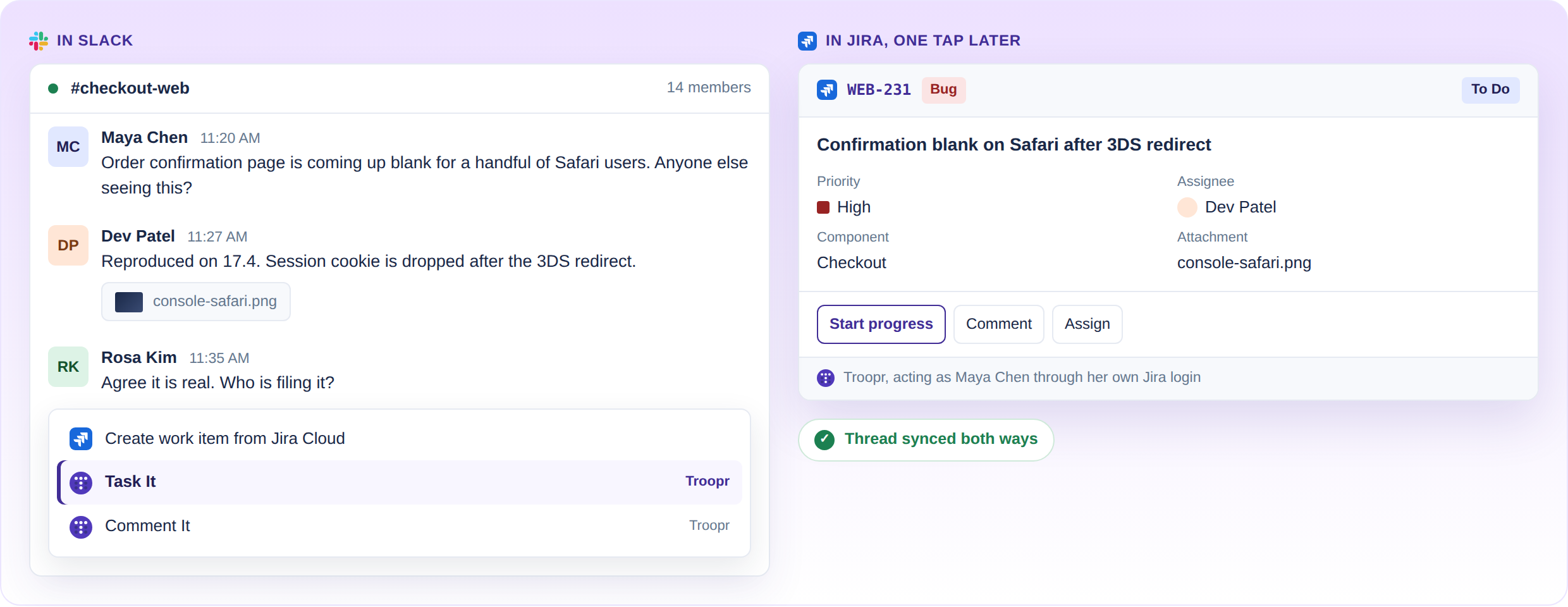
It is 11:20 on a Tuesday. Someone in #checkout-web posts that the order confirmation page is coming up blank for a handful of Safari users, two people reply with theories, one drops a console screenshot, and by 11:35 everyone agrees it is real and probably the session cookie. Nobody makes the ticket, because making the ticket means leaving the thread, opening Jira, picking the right project, filling in a form that wants eleven fields, and pasting the screenshot in by hand. By Friday the thread is forty messages down and the blank page is back.
Every engineering team has a version of that thread. Creating the ticket where the conversation happened keeps the decision, the evidence, and the owner attached to the work instead of evaporating overnight. This guide covers every way to do it:
the four native methods, each of the more than a dozen Troopr adds on top, how to choose, and what goes wrong.
On words: Atlassian now says work item, engineers still say ticket or issue, and this guide uses whichever the screen in front of you does.
What do you need before you start?
Three things, whichever app you use: a Jira site you can log in to (Jira Cloud for the official app, Jira Cloud or Jira Data Center for Troopr), a Slack workspace where you can install apps or an admin who will, and the Create Issues permission in the target project, because both apps act as you and neither can create anything your own Jira account cannot. Refer to Jira Slack integration for more.
Two small things trip people up. In a private channel the bot has to be invited before it can see messages, so run /invite @Jira or /invite @Troopr first, and if your company runs several Jira sites you will be asked to pick one when you connect.
How do you create a Jira ticket from Slack with the official Jira Cloud app?
Jira Cloud for Slack is Atlassian's free app; type /jira in any channel to check whether your workspace already has it. It creates tickets three ways, and Slack's own Workflow Builder adds a fourth.
From a message
- Hover over the message and open More actions (the three dots).
- Choose Create work item from Jira Cloud.
- If your Atlassian plan includes Rovo, switch on Use Rovo to generate the summary and description; it reads the whole thread in a channel, or the single message in a DM. Without Rovo, type both yourself.
- Pick the space (project) and work type, fill any remaining required fields, and Submit.
The ticket posts back as a card in Slack, where you can edit fields inline, watch the item, or push the thread's replies to Jira as comments.
From a thread
The same action, run on any reply inside the thread. Create it from inside the thread and the app syncs that thread to the new work item, so its replies land in Jira as comments. That covers Slack to Jira; comments added in Jira do not come back into the thread with the official app.
With the /jira create command
Type /jira create in any channel where the app is present and a form opens: space, work type, summary, and whatever else the project requires. Rovo does not prefill anything here, so every field starts empty.
With @Jira in plain language
If Rovo is enabled on your Atlassian plan and @Jira has been added to the channel, describe the ticket in a sentence:
@Jira create a bug for the blank confirmation page discussed in this thread and assign it to Priya
Inside a thread it reads the whole thread for context; outside one, the last 15 messages in the channel. If it can work out the space, work type, summary, and description it creates the ticket and posts a link, and if anything is missing it asks. Keep talking to it in the same thread to update or reassign what it made.
With Slack Workflow Builder
Slack's own Workflow Builder has a Jira Cloud connector with a Create an issue step. Start a workflow from a form, a link, or an emoji reaction, add the step, map the answers to Jira fields, and publish. The connector is built by Slack rather than Atlassian, and Workflow Builder itself needs a paid Slack plan.
Where the official app runs out
For a team that makes a ticket from Slack now and then, where everyone has a Jira seat and someone is happy to type the fields, the official app is enough, and it costs nothing beyond what you already pay Atlassian. Rovo, on Premium and Enterprise Cloud plans, closes part of the typing gap.
It runs out of room in four places. Without Rovo, every field is typed by hand, every time. The create form is the same in every channel, so a #checkout-web ticket and a #mobile-bugs ticket start from the same blank slate. Thread sync runs one way, so the engineer working the ticket in Jira is talking to a thread that cannot hear them. And anyone without a Jira account, a designer, a support lead, a contractor, cannot create a ticket at all, because the official app has no path for them. Troopr does: guest facilitation lets someone with no Jira license create issues, comment, and change status through a facilitator account, with the action attributed on their behalf.
Those four gaps are where Troopr starts. (For the wider picture across every app in this space, see our full comparison of Slack-Jira integrations.)
How do you create a Jira ticket from Slack with Troopr?
Troopr Projects installs from the Slack App Directory or the Atlassian Marketplace and connects to Jira per person through OAuth, so everything you create is created as you, with your permissions and nothing more. It runs against Jira Cloud and Jira Data Center on every plan, including Free.
More than a dozen entry points create issues:
- Task It: message action
- Multi-message action: up to ten messages
- Emoji action: configured reaction
- /t create: inline field grammar
- Bot DM or @mention: same grammar
- Global shortcut: Slack plus menu
- Launcher: bug, story, task, epic
- App Home +Issue: private creation
- Auto-create: four channel modes
- User commands: admin-defined keywords
- Add sub-task: from any issue card
- Check-in action item: retro or standup
- Workflow Builder step: Enterprise
The switching cost these remove is measurable. Roku's engineering teams put it at about a 45% reduction in Slack to Jira context-switching, roughly 1.8 focused hours per engineer per day. Here is each one, sorted by the moment you are in.
Task It: create a Jira ticket from a Slack message
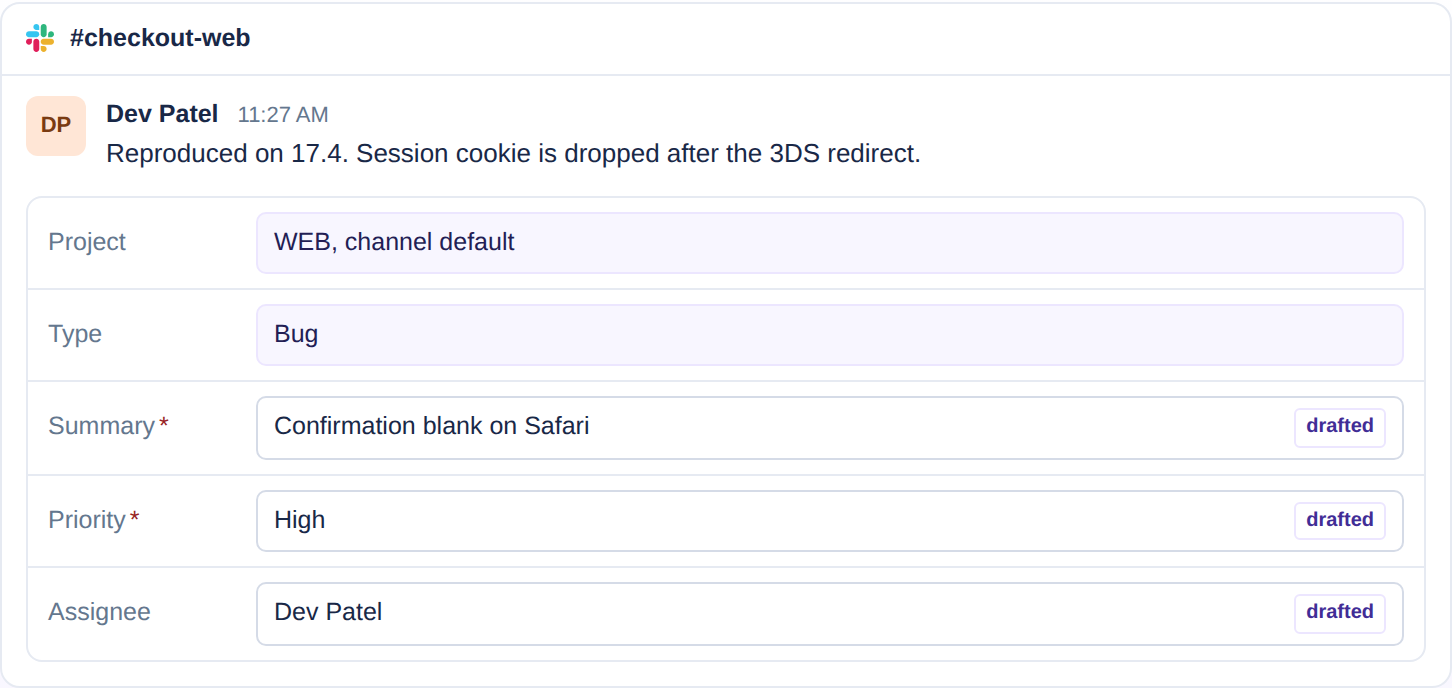
Hover the message, open More actions, choose Task It. Troopr drafts the title, description, priority, and a suggested assignee from the message and its thread. You pick the project and issue type, or take the channel's defaults, and the form redraws with exactly the fields that project and type require, required fields first.
Any files on the message upload to the issue on their own, and the card posts back in the thread, so the person who reported the bug watches it become a ticket without anyone leaving Slack. Task It ships on every plan and does not depend on Rovo.
Create a ticket from a whole Slack thread: the multi-message action
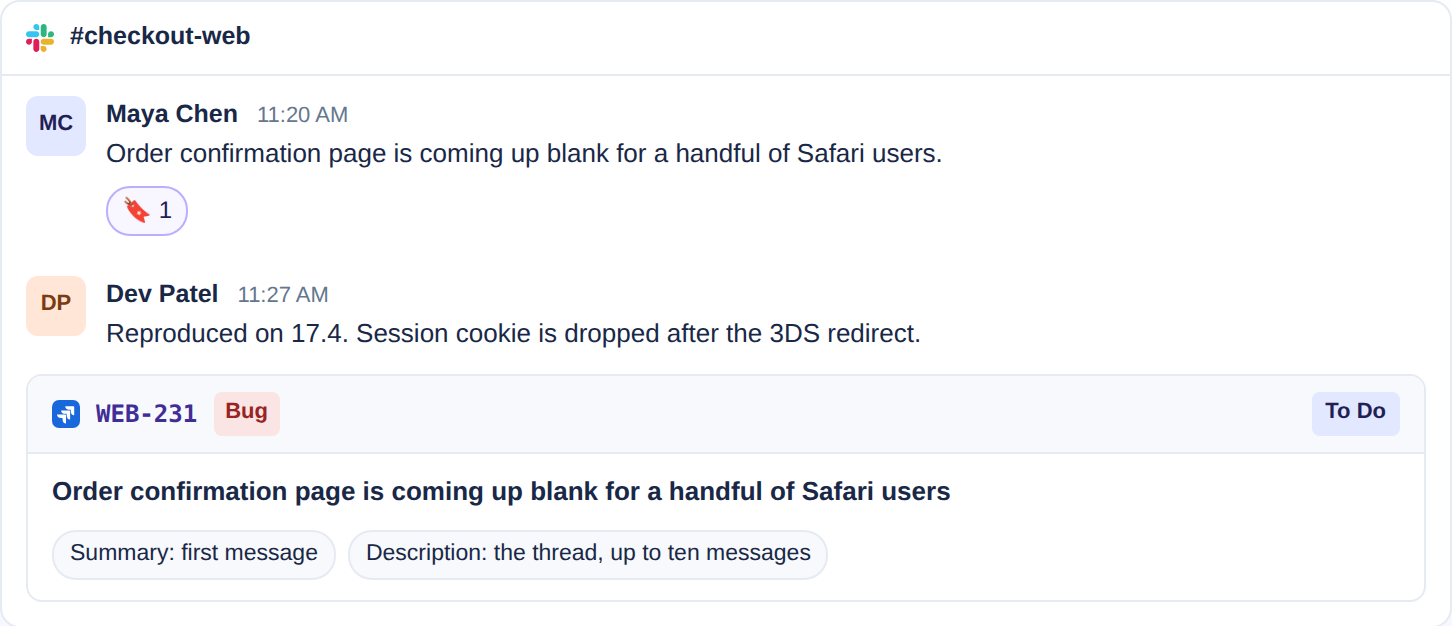
When the ticket is spread across a conversation rather than sitting in one message, react on the first message, then run Task It on the last. The first message becomes the summary and everything between, up to ten messages, becomes the description, so the ticket carries the conversation rather than one line of it. Read the multi-message action setup in the docs.
Create Jira Issues with an emoji reaction
A configured emoji creates an issue from the channel's defaults, or from that emoji's own project, issue type, and field defaults, so a bug emoji in #mobile-bugs can mean "Bug in MOB, priority High, component iOS" while the same emoji in #platform means something else. Emoji actions live at workspace, channel, or personal scope, and the form can be set to always open, open only when something is missing, or never open at all, which is what a high-volume triage channel wants.

/t create: the command with inline fields
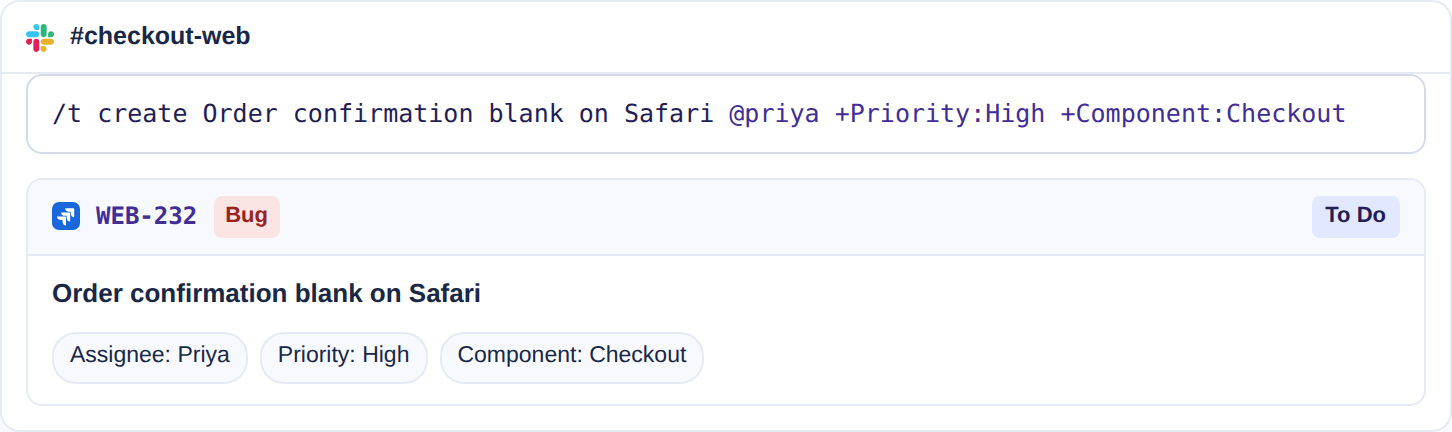
/t create Order confirmation blank on Safari @priya +Priority:High +Component:Checkout creates the issue with those fields set. Field names match Jira's own, custom fields included, and quoted values handle anything with spaces. Whatever you leave out, Troopr opens the form pre-filled with what it parsed. The same grammar works as a DM to Troopr or an @mention in a channel, and the full syntax is in the commands reference.
Shortcuts, the launcher, and App Home
The global shortcut in Slack's plus menu creates from anywhere. Typing /t on its own opens the launcher, with New bug, New story, New task, and New epic as one-tap presets. App Home has a +Issue button for private creation that never posts to a channel, alongside any custom buttons an admin has added with their own defaults.
Auto-create: turn a Slack channel into a Jira issue intake
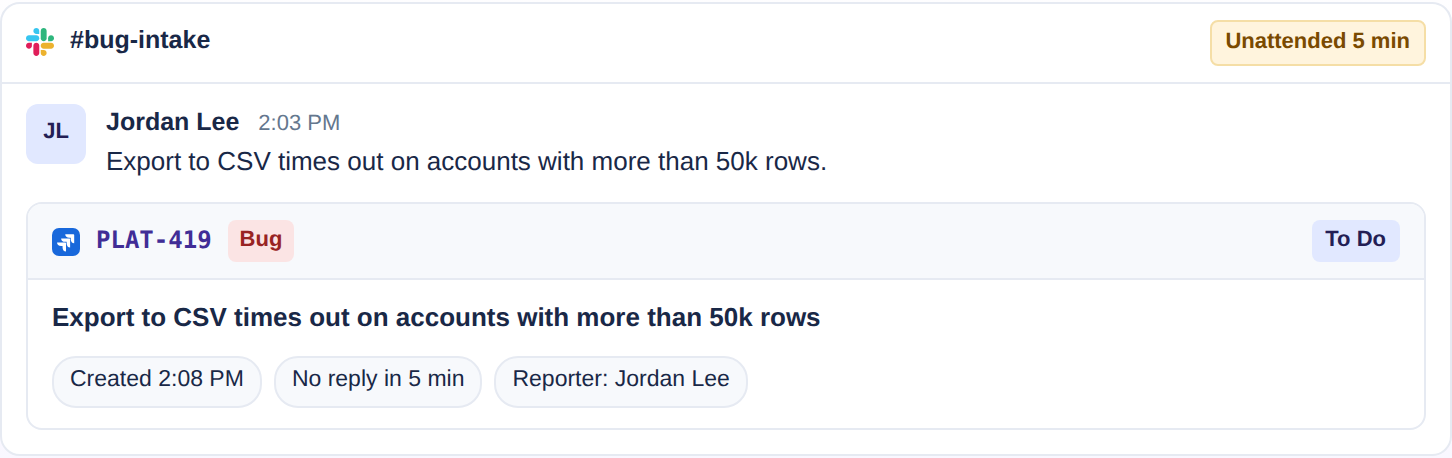
Auto-create runs in four modes, per channel. Every top-level message becomes an issue, with an opt-out emoji for the ones that should not; or any emoji configured for creation; or a message nobody replies to within five minutes becomes an issue, cleared if someone reacts first; or a reminder button appears in the thread asking the author whether this should be a ticket.
Posts from other bots can be converted too, with allow and block lists, and an existing issue key in a message gets previewed rather than duplicated. This is the mode for intake channels nobody triages: the channel itself becomes the triage.
User commands, sub-tasks, and check-in action items
Admin-defined user commands turn a keyword like bug into a create action with saved project, type, and field defaults, so the team types one word instead of remembering syntax. Any issue card offers Add sub-task with the parent preset. And an action item from a retro or standup becomes an issue that links back to the check-in, so decisions made in a meeting stop dying in the meeting.
The Workflow Builder step
On Enterprise, Troopr's own Create Jira issue step sits inside Slack Workflow Builder with field mapping, for teams that want Troopr's create behavior inside a workflow they already run.
Proposals: the ticket nobody had to notice
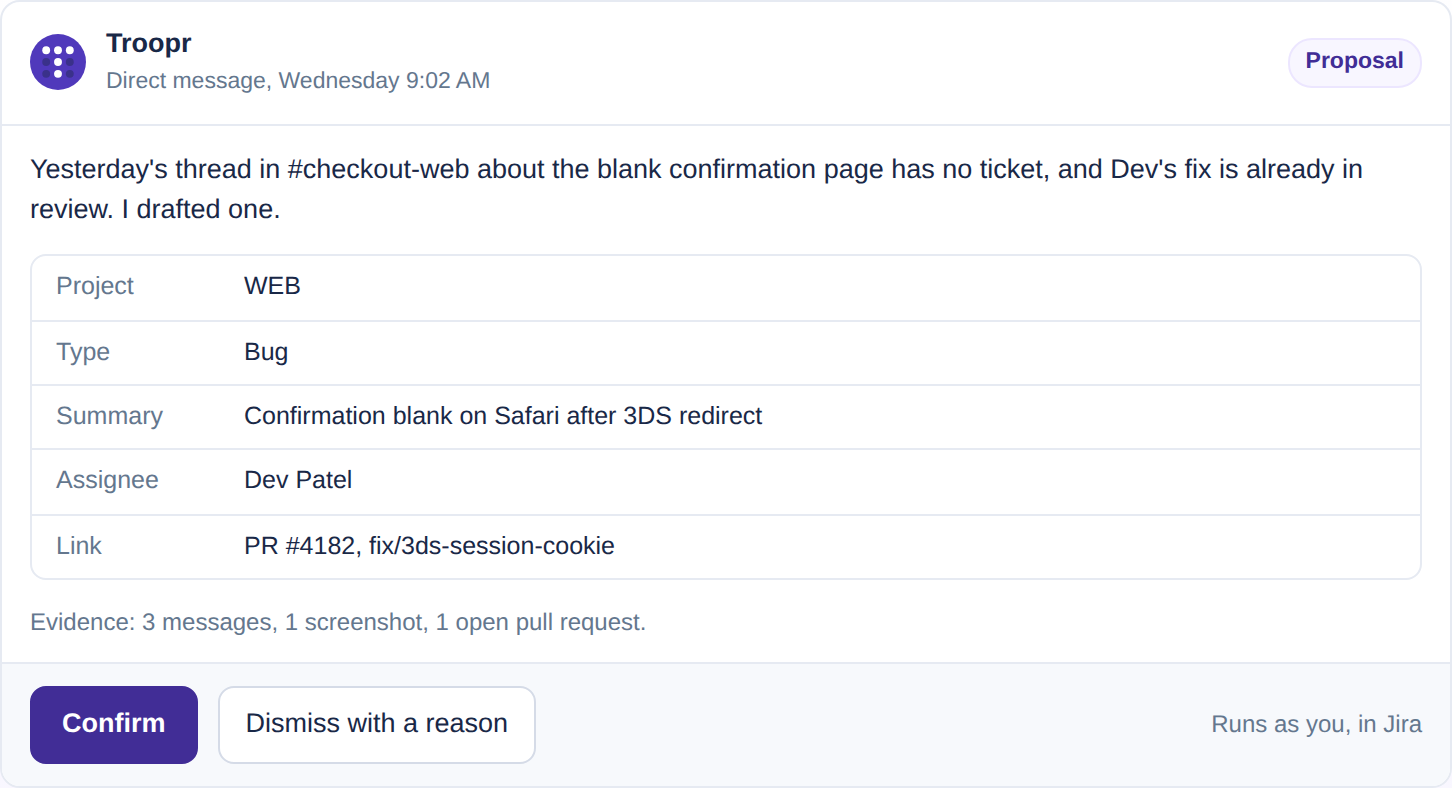
Every method above still needs a person to notice that a ticket is missing. Troopr forms its own view of the team from Jira, GitHub, and Slack activity, and two of its proposal templates exist for exactly this: Tickets from Slack threads, and Discussed but not tracked, which drafts a ticket for anything raised in a check-in that no existing issue covers.
The draft arrives as a proposal in the owner's DM with the evidence attached, nothing is written until they tap Confirm, and the write runs under their own Jira login. Dismiss it with a reason and Troopr treats that reason as a working agreement next time.
Which method should you use?

Why do tickets created from Slack arrive half-filled, and how do you stop it?
Because the form did not know where the ticket was going, so it asked for everything, and people skip what they can. Fix it at the channel.
Set channel defaults. Each channel gets a default project, issue type, and board, with per-issue-type field defaults and a list of optional fields to hide. #checkout-web defaults to WEB, type Bug, component Checkout, and hides the six fields nobody there fills. Workspace-level defaults sit underneath, channels override them, and personal defaults cover DM creation. You can copy a configured channel's preferences to a new one and preview before applying.
Let the form redraw. Troopr's create form is two steps: choose project and issue type, and the form re-renders with the exact fields Jira requires for that combination, required first. Every Jira field type is covered, including cascading selects with live parent-to-child dependency, Sprint with the current sprint as default, Epic Link, parent, components, versions, time tracking, and any custom field that exposes allowed values.
Restrict projects. Per channel or workspace-wide, block selected projects or allow only selected ones, so the ticket cannot land in the wrong place however it was created.
Keep the source attached. Every issue created from Slack carries an attribution block linking back to the message, the person, and the channel, on an editable template. The summary is pre-filled from the message and cut on a word boundary at a length you set between 20 and 250 characters, so titles stop arriving as "Hey so I noticed that when you".
What happens after the ticket exists?
The card. The new issue posts as a card in the thread, or as a new message, ephemerally, or by DM, per channel settings. It shows status, assignee, and up to four fields you choose, with actions on it: change status, comment, assign, add sub-task, log time, attach a file, link an issue.
The thread. With thread sync on, every reply in the Slack thread becomes a Jira comment as its author, edits and deletions mirror, and files upload as attachments. Comments made in Jira post back into the thread with the Jira author's name and avatar, and status or field changes update the card. When the issue reaches Done it de-syncs on its own, with an optional archive of the conversation. Sync can auto-start on creation at workspace or channel level.
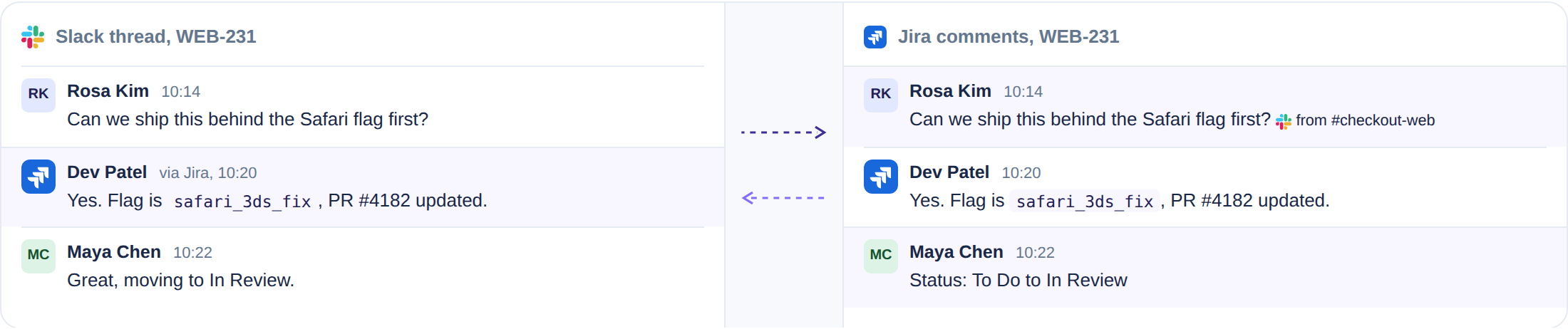
The people without a seat. Someone with no Jira license can still create, comment, and change status through a facilitator account, attributed on their behalf. Slack Connect users from another company are recognised in synced channels.
Full detail on sync, cards, and guest access is on the Troopr Projects page, and Jira notifications in Slack, which any channel can subscribe to filtered by JQL and batched or real-time, have their own guide.
How do you update a Jira issue from Slack?
Most of a ticket's life is updates, and Troopr covers those from the same places. /t status WEB-214 done transitions it, honouring any transition screen with required fields. /t update WEB-214 +Priority:High +Assignee:@priya edits several fields at once, and /t comment, /t log, /t link, and /t assign do what they say. Emoji actions update too: the shipped defaults mark done, assign to me, and add the message as a comment.
/t find and /t list return issues as cards with the same actions, filtered by the standard set (assigned to me, open, updated recently) or any saved JQL. The Comment It message action attaches a message to an existing issue, and the Task check-in delivers each person's assigned issues to them daily, filtered by sprint, board, or JQL, so they update inline and the standup is the update. Netflix's engineering teams put the effect at about 67% less time finding and updating Jira issues.
What goes wrong, and how do you fix it?
Frequently asked questions
Does Jira work with Slack?
Yes, two ways. Atlassian's free Jira Cloud for Slack app handles notifications, previews, creating tickets, and pushing thread replies to Jira as comments. Troopr goes further: bidirectional sync, per-channel defaults, more than a dozen ways to create, standups that write themselves, and Jira Data Center support.
Can you use Slack as a ticketing system?
For an engineering team, Slack is where tickets get raised and discussed, and Jira should stay the system of record. Auto-create channels, emoji triage, and thread sync make Slack the intake and Jira the ledger.
How do I create a Jira ticket from a Slack thread?
Hover any reply, open More actions, and choose Create work item (official app) or Task It (Troopr). Troopr can also take up to ten messages at once: react on the first, Task It on the last, and the first message becomes the summary.
How do I create a Jira issue from Slack?
The same way you create a ticket. Issue, ticket and work item all name the same object. Atlassian is mid-rename, so the official message action now reads Create work item while much of Jira still says issue. Every method on this page creates one.
Can I create tickets in different Jira projects from one Slack workspace?
Yes. With Troopr each channel gets its own default project and issue type, and each emoji action can target a different project.
Can I create a Jira ticket from Slack without a Jira license?
With Troopr, yes. Guest facilitation lets people without a Jira seat create, comment, and change status through a facilitator account, attributed on their behalf. The official app requires an Atlassian account.
Does Troopr work with Jira Data Center?
Yes. Jira Cloud and Jira Data Center are supported on every plan, including Free. For Jira behind a firewall, Troopr publishes fixed IPs for allowlisting and offers a WebSocket agent mode; Enterprise can run Troopr self-hosted.
Will my team's Jira permissions be respected?
Yes. Troopr connects to Jira through OAuth per person, refuses any action in Slack the person could not perform in Jira, and runs every create, comment, and transition as the acting user. Troopr is SOC 2 Type II and ISO 27001 certified and GDPR compliant.
Is Troopr free?
Yes, permanently. Free covers 10 seats, 3 synced channels, 3 routines, all features, unlimited teams and check-ins, no credit card. Only people who take action count as seats; readers are free. Then $6 per seat/month annually or $8 monthly, everything included.
How long does it take to set up?
Install from the Slack App Directory or the Atlassian Marketplace, sign in with Atlassian, and Troopr maps Slack members to Jira accounts by email and creates a demo project channel with a default project and issue type, so the first Task It can run in that channel as soon as you connect. Marqeta's security engineering team finished an eight-day trial and wanted the team using Troopr regularly.
Which should your team use?
If tickets come out of threads every day and you want them to arrive in the right project with the right fields, the screenshot attached, and the conversation still connected, add Troopr. Start for Free: 10 seats, no credit card.


The AI project manager for engineering teams. Forms its own view of the work and does the coordination, right where your team already works.
101 Arctic Circle, Round Rock, Texas 78664, United States.