

Jira Slack integration in 2026: how to connect them, and what to do when the official app runs out
A Jira Slack integration connects your Jira site to your Slack workspace so the team can create, update, and discuss issues in channels and see Jira activity where they already talk. The fastest way to integrate Jira with Slack is Atlassian's free Jira Cloud for Slack app: install it, sign in, and run /jira connect in a channel for notifications, live issue previews, issue creation, and a one-way sync from Slack threads into Jira comments, in about ten minutes. When the conversation also has to flow back into Slack, that is what Troopr adds, and this guide covers both.
What is Jira Slack integration
Call it Slack Jira integration or a Jira Slack connector; either way you are asking for the same three things: connect Jira to Slack, get Jira notifications in Slack, and create a Jira ticket from Slack without leaving the thread.
The official Jira Slack app from Atlassian is free and probably already in your workspace. It does personal and channel notifications with JQL filters, live issue previews, create, update, assign and transition from a card, and it can sync a Slack thread into Jira as comments.
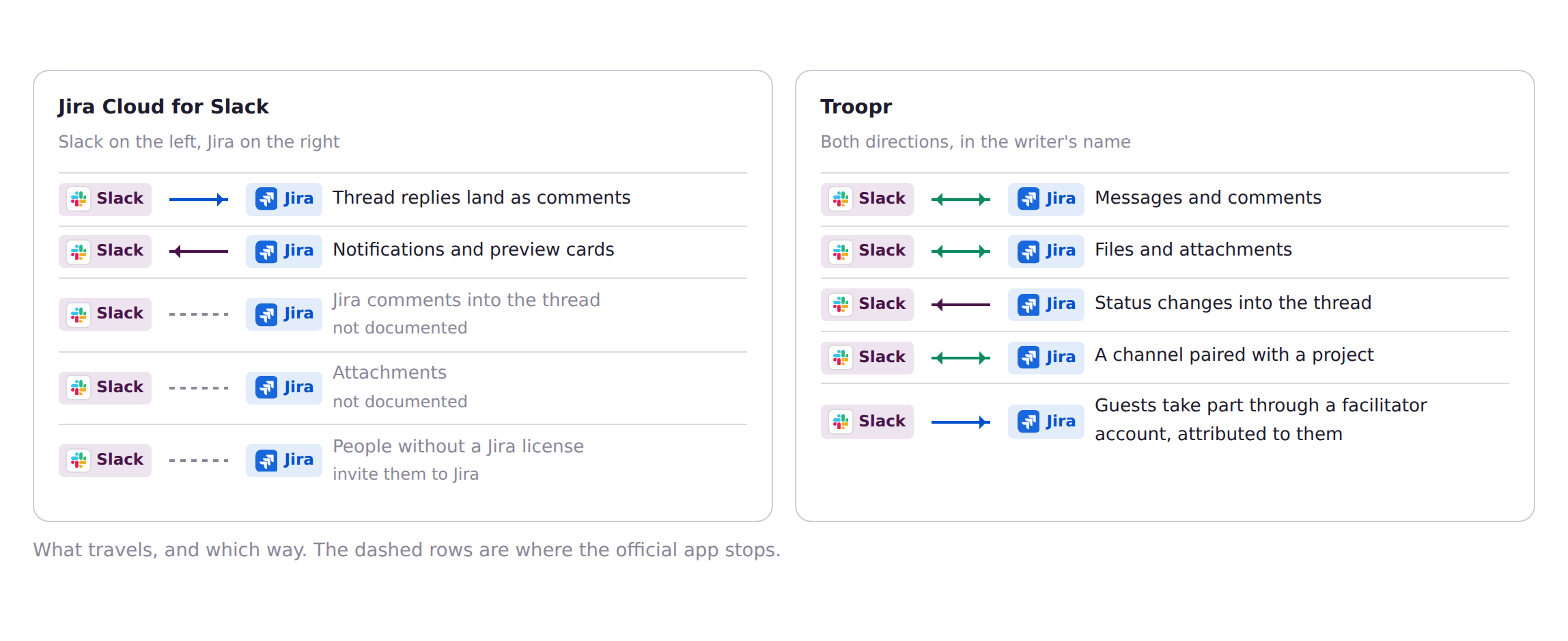
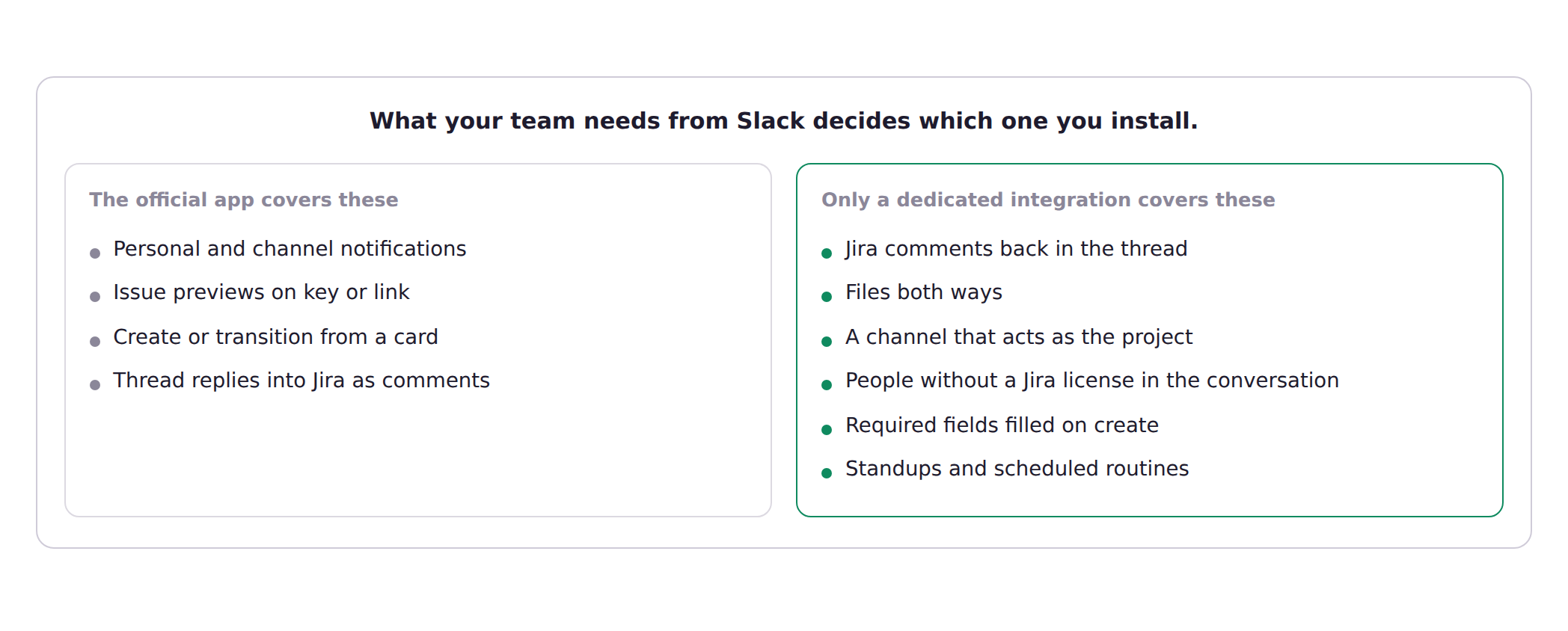
It stops in six places: Jira comments never come back into the Slack thread, attachments do not move both ways, a channel can subscribe to a project but cannot behave like the project, people without a Jira license are shut out of the synced conversation, your custom fields and per-project defaults mostly stay in Jira, and it has nothing to say about standups or reports.
Troopr is the layer for that second list, and the engineering teams running it report about 67% less time finding and updating Jira issues (Netflix) and about 45% less Slack-to-Jira context switching (Roku).
The moment this costs you
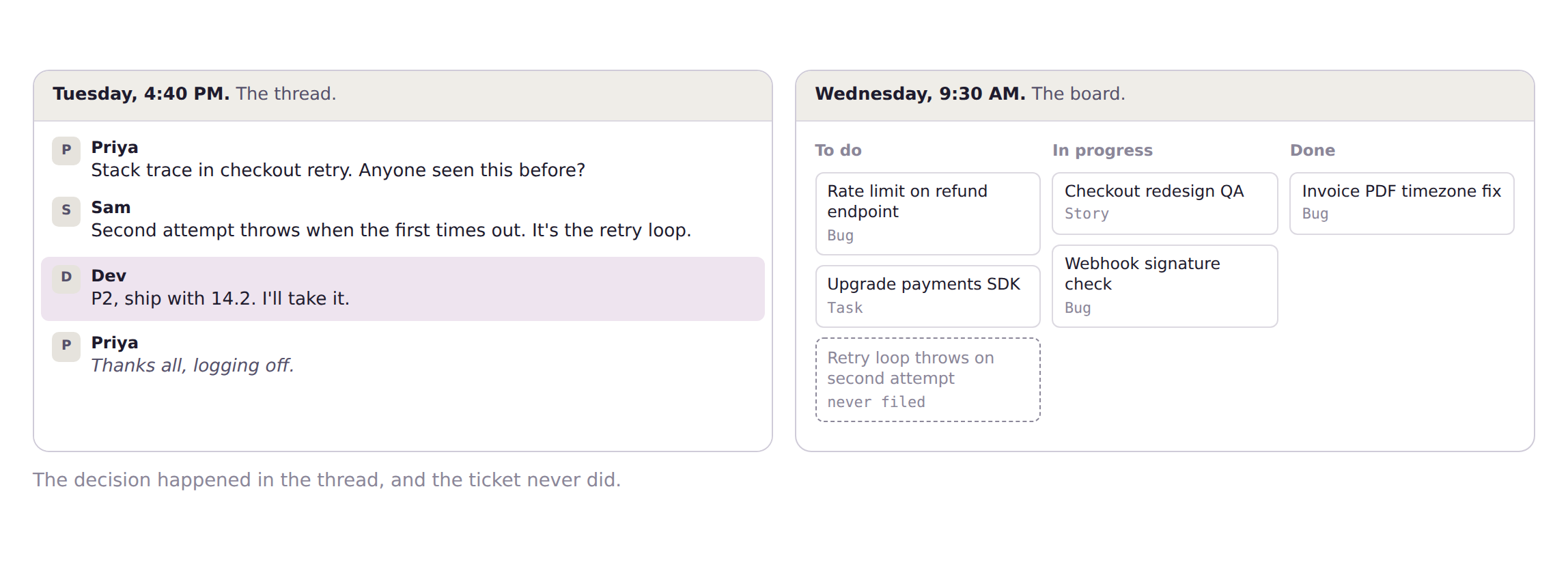
On a Tuesday at 4:40pm someone pastes a stack trace into the payments team's channel, and four people reply in the thread over twenty minutes: they find the root cause, agree it is a P2, decide it should ship with 14.2, one of them says "I'll take it," and everyone logs off. At Wednesday's standup someone asks, "Did anyone file that?" Nobody did, because the decision was made in Slack, where the thinking happens, and it never reached Jira, where the record is supposed to live. The manager spends the first half hour of the day translating threads into tickets, the standup turns into reading Jira aloud because everyone knows Jira is out of date, and the burndown chart is fiction by Thursday because half the sprint's real state lives in threads nobody will search again.
Jira products that integrate with Slack
Atlassian's app connects a Jira Cloud site rather than a single product, so the same install covers more than software teams.
- Jira (formerly Jira Software). The main case, and the one this guide is written for: sprints, boards, and the engineering work items that get discussed in channels. Troopr treats this as its primary product.
- Jira Work Management. Business projects for marketing, finance, HR, and operations. Atlassian documents the same Jira Cloud for Slack app for it, and Troopr supports it alongside Jira, so a channel can be paired with a business project the same way an engineering one is.
- Jira Service Management. Also reachable from the same app at the work-item level, and separately you can connect a Slack workspace to a service project so requests raised in Slack become tickets. Queues, SLAs, approvals, and the customer portal stay in Jira. Troopr works with JSM at the issue level and is built for engineering work rather than IT service requests.
- Jira Cloud against Jira Data Center. Everything above is Cloud. Self-hosted Jira uses Atlassian's separate Data Center app, which needs an instance Slack can reach over HTTPS and gives you notifications only behind a firewall. Jira Server reached end of support in February 2024, and Atlassian has said Data Center ends in March 2029, so self-hosted teams are on a clock. Troopr connects to Jira Cloud and Jira Data Center on every plan, including Free.
Ways to connect Slack and Jira
There are four practical ways to do this in 2026, and most teams end up running two of them.
1. Atlassian's official app
Jira Cloud for Slack is free, built by Atlassian, and covers notifications, previews, issue creation, and one-way thread sync into Jira; self-hosted Jira gets a separate Slack for Jira Data Center app that handles notifications.
Best for a Jira Cloud team that wants notifications and previews with occasional issue creation. The setup is next.
2. Jira Automation rules
Jira's Send Slack message action posts to a channel through a Slack incoming webhook, so a rule like "when an issue moves to Blocked, tell #eng-leads" needs nothing installed in Slack. It runs one direction, nothing comes back, and rule runs count against your Atlassian plan's automation usage limits.
Best for a handful of high-value alerts.
3. Webhooks and a bot you build
Jira webhooks plus your own Slack app gives you exactly the behaviour you specify. The first 30% takes a couple of weeks; the rest is OAuth with token refresh, per-user permission inheritance, rate limits on two APIs, a thread model that survives edits, deletions, and attachments, and maintenance as both APIs change. Wayfair built Slack-to-Jira bots in house, found that maintaining them pulled engineers off product work, and switched.
Best for a unique requirement with a platform team behind it.
4. A dedicated integration
Troopr is ours, so weigh this entry accordingly. It runs the sync in both directions, with comments, files, and status changes flowing back into the thread, lets people without a Jira license take part, fills your required fields on create, and adds standups and routines on top.
Best for teams where the work is discussed, triaged, and closed in Slack, and where Jira falling behind has a real cost. Free for 10 seats.
This guide sets up the first in detail, then shows exactly where it stops and what the fourth adds.
How to connect Jira and Slack with the official app
You need a Jira Cloud site, a Slack workspace where you can install apps (or an admin who will approve one), and about ten minutes.
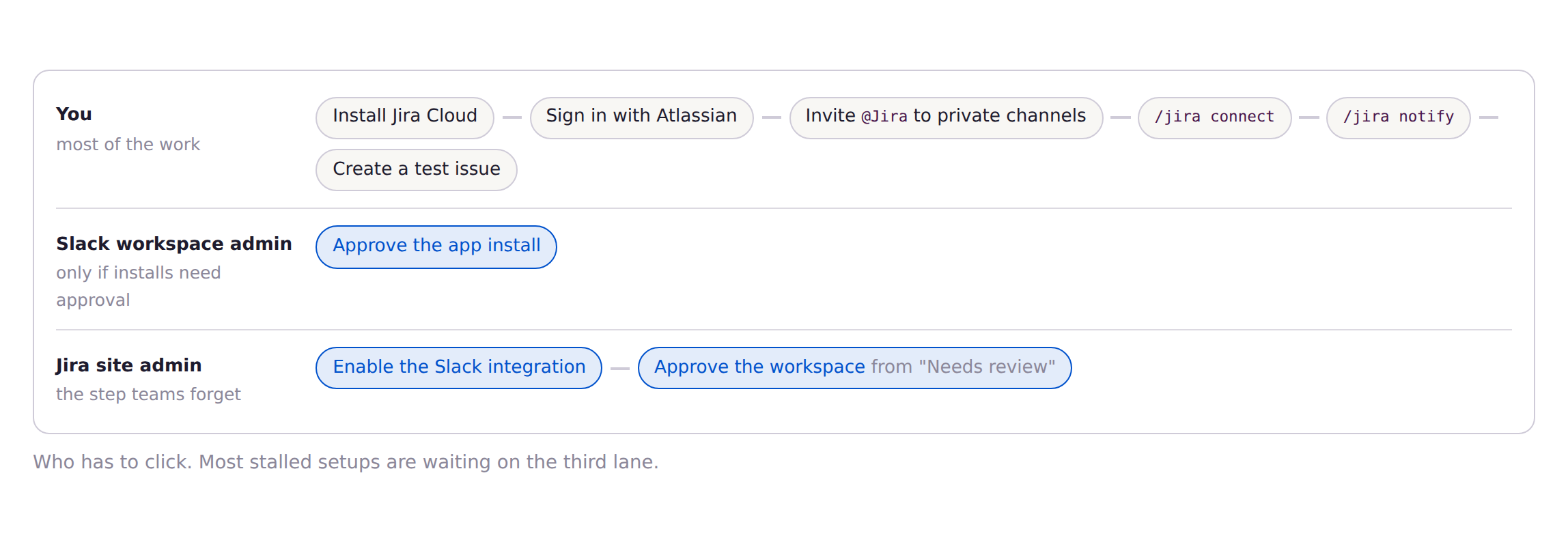
- Install Jira Cloud from the Slack Marketplace. Slack may route the request to a workspace admin for approval.
- Sign in with your Atlassian account and pick the Jira site. If your company has more than one site, pick the one that owns the projects your team uses. Picking the wrong site is the most common reason for "it can't see my project."
- Ask a Jira site admin to enable the Slack integration at
https://<your-site>.atlassian.net/plugins/servlet/ac/jira-slack-integration/addon-config-page. New workspaces sit in "Needs review" until an admin approves them; you can still use the integration in the meantime. - Invite
@Jirato any private channel that should see Jira. Uninvited bots cannot read private channels, by design. - In the channel, run
/jira connectto connect Slack to Jira: choose the site, the project (Atlassian now calls these "spaces"), and the events you want. Project admins can also do this from Jira under Project settings → Notifications → Connect to Slack, which is where the JQL-based advanced filter lives. - Check your personal notifications with
/jira notify. They are on by default and arrive as DMs from@Jira. "Essentials" covers assignments, mentions, comments on your issues, and status changes on things you watch. - Create a Jira issue from Slack as a test (hover a message, More actions, Create work item), confirm the preview card renders, and confirm the thread you created it from is now syncing into the issue as comments.
The commands you will actually use:
| Command | What it does |
|---|---|
/jira connect | Subscribe the current channel to a Jira project |
/jira manage | Update, pause, or disconnect that subscription |
/jira notify | Personal notification preferences (Essentials or All) |
/jira create | Opens a create dialog: project, type, summary, description |
/jira PROJ-123 | Preview an issue, visible only to you |
/jira agent | Configure @Jira for the channel (needs Rovo) |
/jira logout | Signs you out. Does not remove channel subscriptions |
Cloud vs Data Center. Jira Cloud for Slack is Cloud only. Self-hosted teams use Atlassian's separate Slack for Jira Data Center app, whose command is /jira_server, and whose instance has to be reachable from Slack over HTTPS. Behind a firewall you get notifications only. Troopr connects to both Jira Cloud and Jira Data Center on every plan, including Free, and offers a self-hosted deployment on Enterprise for teams whose Jira never touches the public internet.
Rovo is optional for the basics. Creating from a message, /jira create, notifications, and thread-to-Jira comments all work without Rovo. What needs Rovo is @Jira natural language ("turn this thread into three tickets") and the AI prefill on the message action. Rovo is no longer bought separately: it comes with every paid Jira, Confluence, and Service Collection cloud plan and is metered by AI credits pooled across the organisation, 25 per user per month on Standard, 70 on Premium, and 150 on Enterprise, reset monthly with nothing carried over. So the question is not whether you have Rovo, it is whether creating issues from Slack should draw down the same pool as everything else your org runs on it.
What the official app does well
Atlassian's Jira integration with Slack does considerably more than most teams give it credit for, and you should know what you already have before you add anything.
It handles notifications, and our guide to Jira notifications in Slack covers setting them up and filtering them. Personal DMs for your issues, channel subscriptions per project with filters on type, priority, and event, and JQL-based filtering from the project settings if you need something tighter than the picker gives you.
It gives you live cards. Paste an issue key or link and you get an editable preview with status, assignee, priority, and description. You can comment, assign, transition, or edit inline without opening Jira.
It creates Jira issues from Slack four ways: the message action, /jira create, @Jira in natural language if Rovo is on, and a Slack workflow that creates a Jira ticket from a form, on paid Slack plans.
It syncs a thread into Jira. From a preview card, choose Sync with thread, and replies in that Slack thread become comments on the issue, including the messages posted before you clicked. Creating a single issue from a thread turns this on automatically. Atlassian documents it here.
It respects Jira permissions. If you cannot browse a project in Jira, you cannot act on it from Slack. On Cloud, issues under a security scheme do not generate Slack notifications at all.
For a team that wants notifications, previews, and the occasional issue created from a message, this is enough. Stop reading here and go set it up.
Where it stops
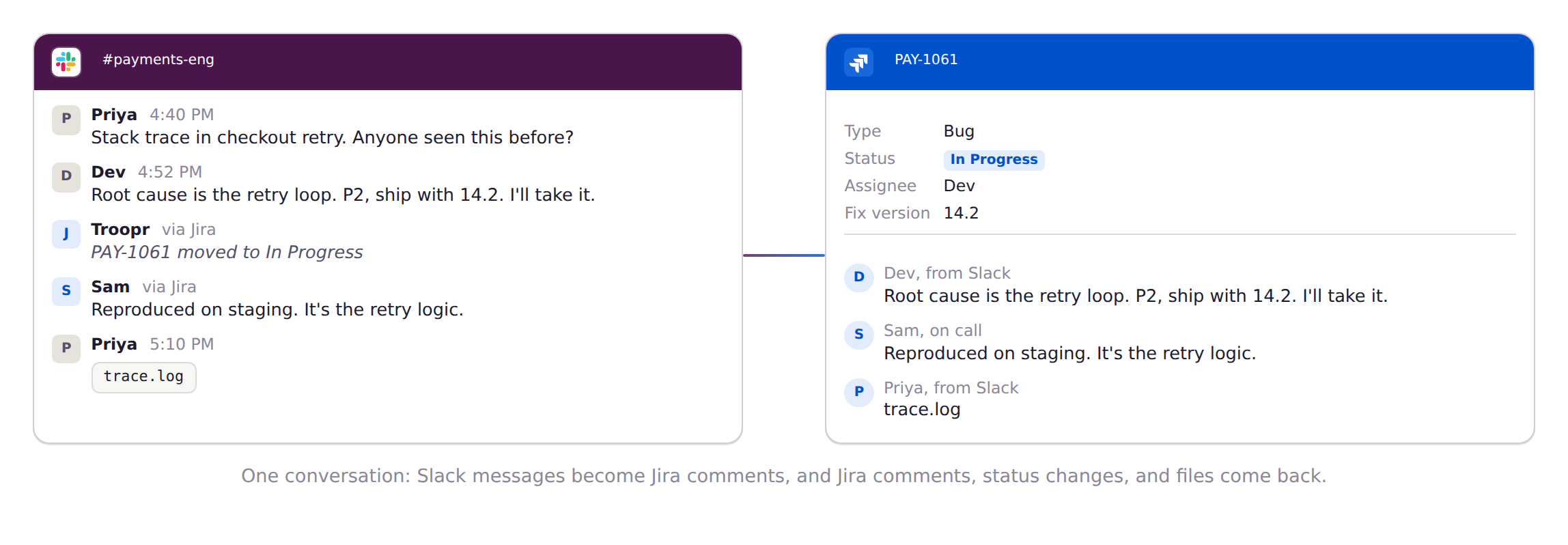
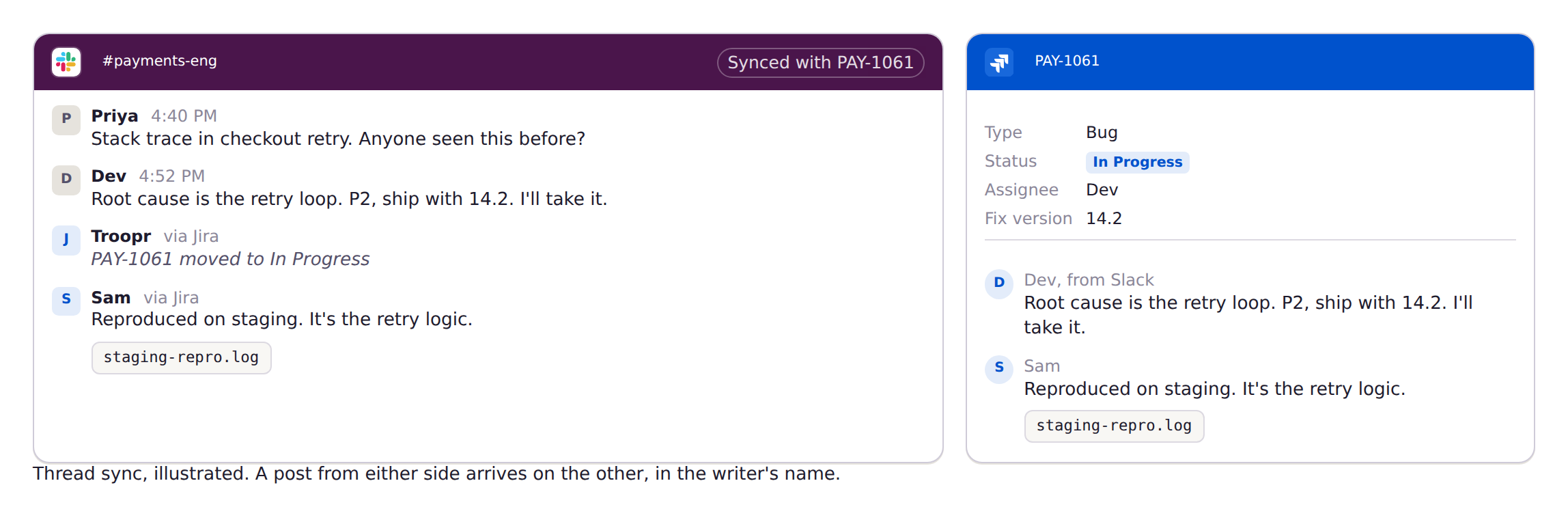
Back in the #payments-eng thread, somebody has used the message action to create PAY-1061, so the thread is now syncing into Jira as comments, and here is what happens next.
- Jira comments do not come back. The on-call engineer comments "reproduced on staging, it's the retry logic" in Jira, and because Atlassian's sync runs one way, Slack to Jira, the four people in the Slack thread never see it.
- Attachments stay where they were dropped. The screenshot posted in Slack stays in Slack and the log file attached in Jira stays in Jira.
- A channel cannot be the project. You can subscribe a channel to a project and receive events, but you cannot make it behave like the project, where every conversation is a conversation on an issue and every Jira update arrives as a reply.
- People without a Jira license are locked out. The PM asking "is this in 14.2?" has no Jira seat, and the official app's only answer is to invite them to Jira when what they need is to be in the conversation about the issue.
- Your fields stay in Jira. If your Bug type requires Component, Affected Version, and a Severity custom field, the Slack create form largely does not know that, so issues arrive half-filled and someone rewrites them later.
- Nothing for the ceremonies. There are no standups, no retros, no scheduled sprint reports, and no nudge when an issue has sat untouched for five days, and that is where most of a manager's week goes.
Closing the loop with Troopr
Troopr Projects is the two-way layer on top of the plumbing above.
Adding Slack conversations to Jira issues
Start a thread sync on any issue, or from a Troopr preview card, and the Slack thread and the Jira comment stream become one conversation. Slack messages post to Jira as comments, in the name of the person who wrote them. Jira comments post back into the Slack thread. A file dragged into the thread attaches to the issue; a file attached in Jira appears in the thread. Status changes made in Jira show up in Slack where the people who care are already looking.
Channel sync does the same for a whole project: pair a Slack channel with its Jira project and the channel becomes the project's working surface, where conversations become comments on the right issues, Jira updates arrive as replies, and the channel history is the project history.
Guest facilitation handles the PM without a Jira seat. They can read and take part in the synced thread, and when they act, the action goes through a facilitator account the admin authorises and is attributed to them.
The on-call engineer's "reproduced on staging" comment now shows up in the thread where the discussion started, and that one change carries most of the value.
Issue preview
Mention an issue by key or URL and Troopr unfurls it into a card showing status, assignee, and up to four fields you choose, with the actions you choose on it. The card is also where a thread sync starts, so a link someone pasted for context becomes the place the work is discussed and updated.
Task It: the thread becomes a complete issue
Hover a message, choose Task It, and Troopr drafts the issue from the conversation: title, description with the relevant thread context, a suggested priority, and a suggested assignee. It reads your project configuration, so the required fields are on the form. You confirm, edit, or reject, and nothing is written to Jira until a person clicks.
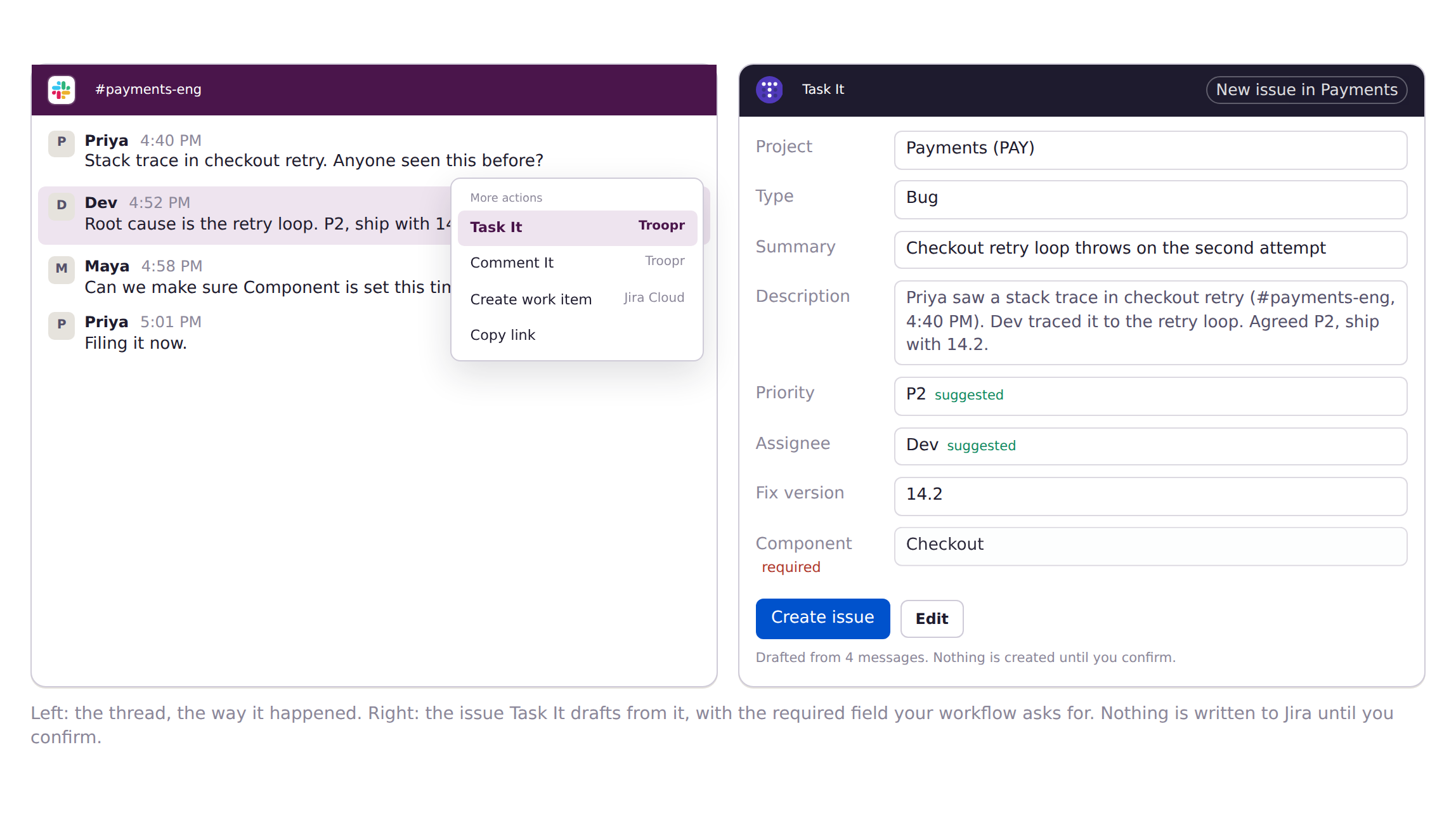
Task It ships on every Troopr plan including Free, and it needs no Rovo, no credits, and no paid Atlassian plan.
Seven ways to turn a Slack moment into an issue
Teams differ in how they like to capture work, so Troopr does not force one path.
- Task It: From the message action menu, with the draft filled in.
- An emoji: Add the configured emoji (a ticket by default) to any message. Emoji actions can be set at workspace, channel, or personal level, so
#bug-triagecan have a:bug:that creates a Bug in the right project at P2 in the current sprint. - The global shortcut: From Slack's plus menu, anywhere.
- App Home: Open Troopr in the sidebar and hit +Issue.
/t createand a summary: Anywhere in Slack. Admins can add custom/tsub-commands with their own defaults.- The
/tlauncher: Then +Issue. - Auto-create in a channel: Every message in
#support-escalationsbecomes an issue, with the channel's field defaults applied.
Behind all seven: per-channel field defaults, dynamic forms that discover required fields and respect transition rules, multi-message issue creation (select several messages, get one issue with the combined context), and per-channel project restrictions so #design cannot accidentally file into Payments.
The issues dashboard
Troopr's App Home is the dashboard for your own work: the issues assigned to you, what you are watching, and a +Issue button to file another. Workspace admins choose what it shows, and each person can configure their own view, so it stays a working list rather than a feed.
Getting issue updates in Slack
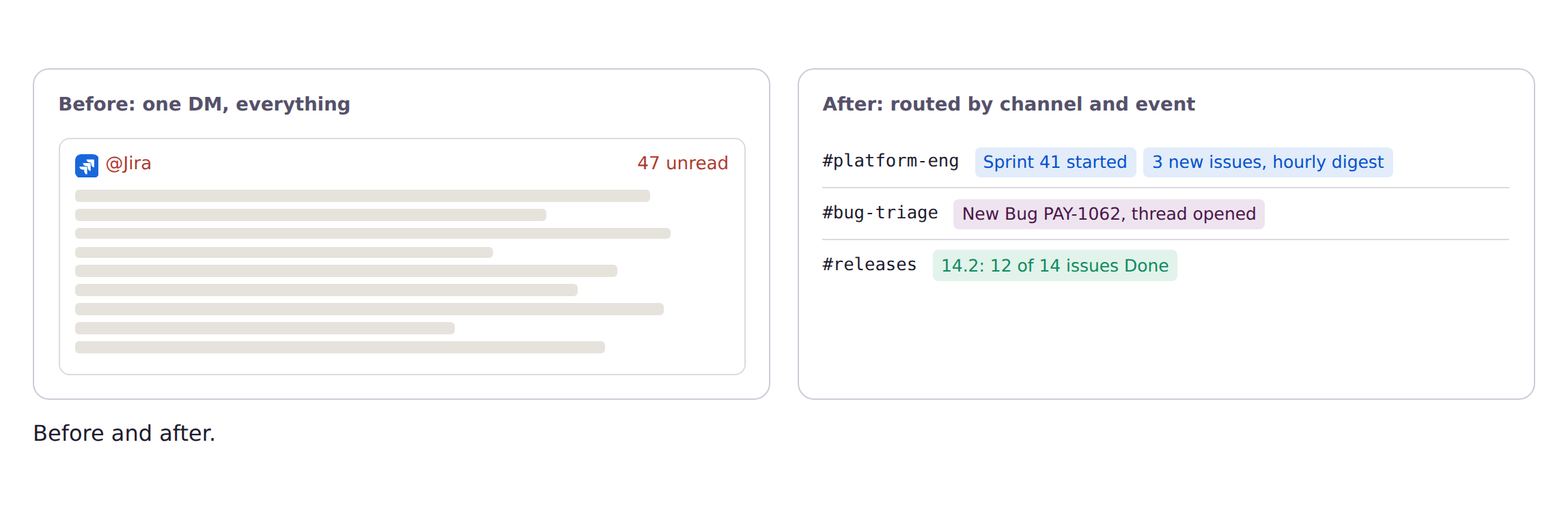
Most Jira Slack notification setups end the same way, as a personal firehose people mute, so Troopr routes by channel and by event: the team channel gets sprint start and stop plus new issues on its board, compact and batched hourly, while #bug-triage gets new Bugs and triage transitions in real time, detailed, with a synced thread spawned on each one so triage happens in the thread and lands on the ticket. Filter any of it with JQL and status, and choose which fields and action buttons appear on the message.
Running a standup
Once Slack and Jira agree with each other, two more things become possible, and both ship on every plan.
Troopr Check-ins runs the standup asynchronously in Slack. Each person answers when their day starts, Troopr attaches their Jira activity since yesterday, and where that activity already tells the story it drafts the update itself and asks only when something is unclear; after the check-in closes an AI summary pulls out blockers, themes, and action items. Snowflake's engineering teams cut weekly status meeting time by about 86% after moving to this.
Sharing a burndown chart
A Troopr routine is a standing instruction Troopr runs for the team: post the sprint burndown every weekday at nine, or velocity, issues by assignee, or any JQL you write. The report it produces renders inline with action buttons, so the reader can transition or reassign without leaving Slack. Nudges flag overdue, unassigned, and stale issues with one-click fixes.
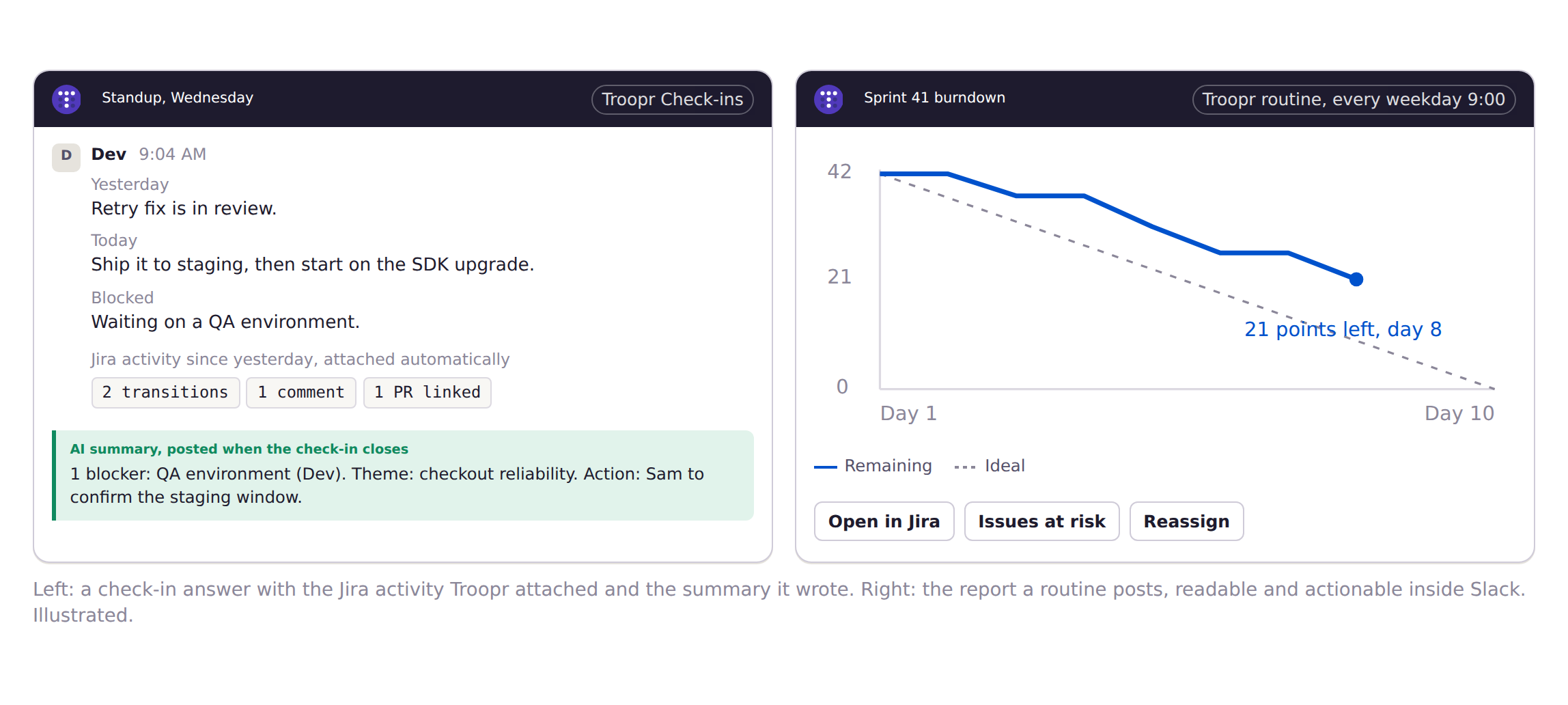
Free includes 10 seats, 3 synced channels, and 3 routines, and standups and check-ins are unlimited.
Free for 10 seats. Every feature, three synced channels, three routines, no credit card. Start for Free.
Troopr vs Jira Cloud for Slack app
| Capability | Jira Cloud for Slack (official) | Troopr |
|---|---|---|
| Home tab with your issues | Yes | Yes, configurable per user and per workspace |
| Create issues from Slack | Message action, /jira create, @Jira (Rovo), Workflow Builder | Seven methods, including Task It on every plan |
| Update, assign, comment, transition | Yes, from cards | Yes, from cards and /t |
| Issue preview on key or URL | Yes, fixed card | Up to 4 fields, choose the actions, start sync from the card |
| Slack thread to Jira comments | Yes; auto on single create | Yes |
| Jira comments to Slack thread | Not documented | Yes |
| Attachments both ways | Not documented | Yes |
| Channel paired with a project | Event subscriptions only | Channel sync |
| Channel notification filters | Type, priority, event; JQL from project settings | Per-channel JQL and status, compact or detailed, real-time or batched, optional synced thread |
| Custom fields, defaults, dynamic forms | Limited | Per-channel defaults, dynamic required fields, transition-rule aware |
| People without a Jira license | Invite them to Jira | Guest facilitation |
| Async standups, retros, planning poker | No | Troopr Check-ins, every plan |
| Scheduled Jira reports and nudges in Slack | No | Troopr routines, every plan |
| AI | @Jira and message-action prefill need Rovo, included on paid cloud plans and metered by credits | Task It and check-in summaries on every plan, no credits to budget |
| Jira Data Center | A separate Data Center app | Cloud and Data Center on every plan; self-hosted option on Enterprise |
| Price | Free app; Rovo included on paid Atlassian cloud plans, metered by credits | Free for 10 seats; then $6 per seat/month annual, $8 monthly; readers free |
Verified against Atlassian's documentation and the Slack Marketplace, September 2026. The longer comparison goes row by row.
One more option you will see in the Slack Marketplace: Jira Integration+, a third-party app with deeper editing, custom fields, and dedicated issue channels, for Cloud and Data Center. It is a fair alternative if two-way sync is your whole requirement. Troopr's difference is that the sync comes with the standups, reports, and nudges an engineering team also needs, in one app, on one free plan.
When the official app is enough
It is free, it is Atlassian's, and it is probably installed, so if your team needs personal notifications, issue previews, create or transition from a card, and Slack threads posting into Jira as comments, it does all of that well with no second vendor, no second bill, and no Rovo required for those basics. If your org is on a paid Atlassian cloud plan then Rovo already comes with it, @Jira natural language is a real workflow, and "turn this thread into tickets" is useful as long as the credit pool covers the volume. Troopr earns its place when the work itself happens in Slack: when Jira comments have to reach the thread, when a channel should be the project, when the PM without a license needs to be in the room, when issues have to arrive in Jira with the fields your workflow requires, and when you would like the standup to run from the Jira activity that already happened. If none of that describes your team, stay on the official app.
Getting started with Troopr
You do not have to remove the official app; plenty of teams keep it for personal DMs from @Jira and use Troopr to run the channels.
- Start for Free. Ten seats, three synced channels, three routines, every feature, no credit card, no time limit.
- Connect Slack. Install Troopr from the Slack App Directory or the Atlassian Marketplace, then pick the workspace where your team already talks. Slack connections use OAuth, so you are approving named scopes rather than handing over a password.
- Connect Jira with OAuth, as yourself. OAuth is the recommended path and the one Troopr uses: it connects as you by default, with no shared account required, and inherits your Jira permissions. Troopr is registered once as an application link in your Jira, which needs a Jira admin and takes a minute, and after that each person connects their own account. If one person connects Jira "for the team," every write looks like that person. Steps for Jira Cloud and Jira Data Center.
- Self-hosted Jira also needs a network path between Troopr and your instance, so check the corporate firewall and allowlist Troopr's IP addresses. Without it, the connection completes and nothing arrives.
- Where a customer prefers one shared connection rather than per-user OAuth, Jira's basic authentication with an Atlassian account email and API token is the alternative. It costs you the per-user attribution, so every write shows the same name.
- Pick a project channel, pair it, and create one test issue with Task It. Then start a thread sync from the preview card, post a comment from Jira, and watch it land in Slack.
Once Jira is connected, Troopr maps Jira accounts to Slack accounts on its own wherever the two profiles match with enough confidence, so most of the roster is done for you. A mapped person still has to verify their own Jira account before they can act from Slack; until they do they can read what the channel shows, and an admin can facilitate access for them instead.
Teams that stopped copy-pasting between Slack and Jira

Netflix engineering, running Jira behind their own firewall, reports about 67% less time finding and updating Jira issues. Their reason for choosing Troopr was not the feature list.
We picked Troopr because it was cleared by our internal security team and the Jira integration just worked. Troopr boasts stable development and a responsive support team.Engineering, Netflix
Roku measured a roughly 45% reduction in Slack-to-Jira context switching, and adoption spread team by team as people in shared channels saw it working and asked how to get it. Snowflake cut weekly status meeting time by about 86% after moving standups to Troopr Check-ins. Yahoo's managers report about 3.8 hours a week back from meeting logistics.
Troopr runs in more than 600 engineering teams, including Spotify, Starbucks, Zynga, and Nextdoor. Customer stories.
Security and permissions
Troopr connects to Jira with per-user OAuth, as you by default, with no shared account required, no stored password, and no permission Troopr has that the connecting user does not. Each person verifies their own Jira account and authorises Troopr to act on their behalf, which gives them exactly the access they already have in Jira: Troopr will not allow an action in Slack that Jira would refuse. If you cannot see an issue in Jira, you cannot see it in Slack through Troopr. Writes are attributed to the Jira user who confirmed them, and per-channel project restrictions let admins decide which projects a channel may touch.
Enterprise ready
Troopr is SOC 2 Type II compliant and ISO 27001 certified, both audited annually by independent firms, and GDPR compliant. Data is encrypted in transit with TLS 1.2 or higher and at rest with AES-256, hosted on AWS. Customer data is never used to train models. Enterprise plans add Slack Grid, bot white-labeling, a self-hosted deployment for Jira behind the firewall, MSA and custom DPA, and support for your security team's review. The full posture is on the security page.
One caveat that applies to Atlassian's own tooling: on Jira Cloud, issues under a security scheme do not generate Slack notifications. Atlassian's Slack for Jira Data Center app does not respect issue security levels in the same way, so treat any Data Center channel mapping as a security decision rather than a convenience.
Troubleshooting
| Symptom | Likely cause | Fix |
|---|---|---|
| "Can't see that project" | Missing Browse Projects permission, or the wrong Jira site connected | Fix the Jira permission, or reconnect and pick the site that owns the project |
| Troopr writes show the wrong name | Someone else completed the Jira OAuth | Reconnect Jira as yourself |
| A guest's action is attributed to someone else | Guests act through the facilitator account the admin authorises | Check the facilitator configuration; actions are attributed to the guest once it is set |
Frequently asked questions
How do I integrate Jira with Slack?
Install Jira Cloud for Slack from the Slack Marketplace, sign in with Atlassian, have a Jira admin enable the integration, invite @Jira to private channels, and run /jira connect in the channel. For two-way comments, attachments, channel sync, guests, and your custom fields on create, add Troopr.
Is the Jira Slack integration free?
Atlassian's app is free, and Rovo, which powers @Jira natural language, now comes with every paid Atlassian cloud plan rather than being bought separately, metered by pooled AI credits. Troopr is free for 10 seats with every feature, three synced channels, and three routines, no card, no time limit. Beyond that it is $6 per seat per month on annual billing ($8 monthly), and people who only read notifications never need a seat. Pricing: https://www.troopr.ai/pricing
Can I create a Jira ticket from Slack?
Yes. With the official app: the message action, /jira create, @Jira if Rovo is on, or a Workflow Builder template. With Troopr: Task It, an emoji, the global shortcut, App Home, /t create, the /t launcher, or channel auto-create.
How do I get Jira notifications in Slack?
Personal notifications come from /jira notify, on by default. Channel notifications come from /jira connect or from the project's settings in Jira, including JQL filters. Troopr adds per-channel JQL and status filters, compact or detailed format, batching, and the option to open a synced thread on every notification.
Does the official app sync Slack threads with Jira?
One way. Sync with thread posts Slack replies into Jira as comments, and it turns on automatically when you create a single issue from a thread. Jira comments and attachments do not come back into Slack. Troopr's sync runs both directions, at the thread and at the channel.
Do I need Rovo?
Not for creating, updating, notifying, or syncing a thread into Jira. Rovo powers @Jira natural language and the AI prefill on the message action, and it now comes with every paid Jira, Confluence, and Service Collection cloud plan instead of being sold separately, metered by AI credits pooled across the organisation: 25 per user per month on Standard, 70 on Premium, 150 on Enterprise, reset monthly with no rollover. Troopr's Task It uses no Rovo and no credits, and works on every Jira plan including Cloud Free.
Does it work with Jira Data Center?
Atlassian offers a separate Slack for Jira Data Center app (/jira_server) that needs an HTTPS-reachable instance and is notification-only behind a firewall. Troopr supports Jira Cloud and Data Center on every plan including Free, and Enterprise customers can run Troopr self-hosted inside their own network.
Do Slack users need Jira accounts?
To write to Jira, yes, with either app; Jira permissions are the source of truth. Troopr's guest facilitation lets people without a Jira license take part in a synced thread and act through a facilitator account the admin authorises, attributed to them, and a Troopr seat is only needed by people who take action.
Do I have to remove the official app to use Troopr?
No. Both run together. Many teams keep the official app for personal DMs and use Troopr for channel sync, filtered notifications, standups, and reports.
What about Jira Service Management?
Both apps work at the issue level with JSM projects. Queues, SLAs, and the portal stay in Jira. Troopr is built for engineering work rather than IT service requests.
Running IT or Jira Service Management in Slack?
Approvals, CSAT, and agent triage in Slack live in Enjo: https://www.enjo.ai/enjo-for-your-helpdesk/enjo-for-jira
How secure is Troopr?
Troopr connects to Jira with per-user OAuth, as you, with no shared service account required, so it inherits your Jira permissions and every write is attributed to the person who confirmed it. Troopr is SOC 2 Type II compliant and ISO 27001 certified, both audited annually by independent firms, and GDPR compliant. Data is encrypted with TLS 1.2 or higher in transit and AES-256 at rest, and customer data never trains a model. Security: https://www.troopr.ai/security
How do I set up Jira Slack integration in a private channel?
Invite the bot first. Type /invite @Jira in the private channel for Atlassian's app, or /invite @Troopr for ours, then run the usual connect step. Uninvited bots cannot read private channels, by design, so this is the step people miss when a channel stays silent while everything else looks configured correctly.
How do I include a Jira ticket in Slack?
Paste the issue key or the URL into any message. Troopr unfurls it into a card showing status, assignee, and up to four fields you choose, with the actions you choose on it, so readers get the answer without opening Jira. The same card is where you start a thread sync.
How do I automate Slack messages into Jira issues?
Two quick paths: add the configured emoji to the message, or use the Task It message action: https://docs.troopr.ai/project/task-it-message-action
Both file the issue with the thread's context already in it, and a channel can be set to do it for every message automatically. The seven ways above cover each path: https://www.troopr.ai/post/best-jira-slack-integration#troopr
The workflow steps documentation goes further into triggers and schedules: https://docs.troopr.ai/troopr-workflow-steps
How to set up a webhook for Jira Slack integration?
You do not have to. When you connect Troopr to Jira, Troopr registers its own webhook in your Jira and subscribes to the events it needs, so there is nothing to configure by hand and nothing to maintain when those events change. If you are building your own integration instead, Atlassian's webhook documentation covers creating one and choosing what it fires on: https://developer.atlassian.com/server/jira/platform/webhooks/
How do I use Jira slack integration commands?
Troopr's commands run on /t: type /t create followed by a summary to file an issue, or /t on its own for the launcher. Atlassian's app uses /jira, and the command table above lists the ones you will actually use. Admins can add custom /t sub-commands carrying their own project and field defaults. Every /jira, /jira_server and /t command, with examples you can paste, is in our guide to Jira Slack commands. Full command list: https://docs.troopr.ai/project/commands
Top reasons why Jira Slack integration does not work?
Three causes cover most of it: self-hosted Jira with no network path from Troopr, which usually means a firewall rule or an IP allowlist; the person taking the action not having that permission in Jira, since neither app grants anything Jira does not; and Jira or Slack itself being slow or unavailable, which the Atlassian and Slack status pages will confirm.
Atlassian status: https://status.atlassian.com/
Slack status: https://status.slack.com/
Troubleshooting: https://www.troopr.ai/post/best-jira-slack-integration#troubleshooting
Where can I find Slack Jira integration documentation?
Troopr's documentation is at https://docs.troopr.ai/: connecting Jira Cloud and Jira Data Center, verifying your Jira account, commands, notifications, thread and channel sync. For Atlassian's app, their own Jira Cloud for Slack documentation covers installation, the /jira commands, channel subscriptions, and thread sync: https://support.atlassian.com/jira-software-cloud/docs/use-jira-cloud-for-slack/
How does Jira slack automation work?
Troopr supports Slack Workflow Builder steps for Jira, so a form submission, a schedule, or a reaction in Workflow Builder can create or update an issue with the fields you map. Around that, routines run standing instructions on a cadence or as a watch that posts only when a condition is true: https://www.troopr.ai/slack-charts-reports-reminders-jira
The workflow steps documentation covers the steps in detail: https://docs.troopr.ai/troopr-workflow-steps



The AI project manager for engineering teams. Forms its own view of the work and does the coordination, right where your team already works.
101 Arctic Circle, Round Rock, Texas 78664, United States.