

Jira Slack integration in 2026: how to set it up, and what to add when the official app stops

A Jira Slack integration connects your Jira site to your Slack workspace, so your team can create, update, and discuss issues in channels and see Jira activity where they already talk. The fastest way to set it up is Atlassian's free Jira Cloud for Slack app: install it, sign in, and run /jira connect in a channel. In about ten minutes you get notifications, live issue previews, issue creation, and Slack thread replies posted to Jira as comments. If Jira comments, files, and status changes also need to come back into the thread, Troopr adds that two-way sync, free for 10 seats. This guide covers the setup, the other ways to connect the two, and how to choose.
Jira Slack integration in 30 seconds
- Setup: Atlassian's Jira Cloud for Slack app is free and takes about ten minutes. A Slack admin may need to approve it, and a Jira site admin enables it.
- What you get: personal and channel notifications, a Home tab with the work assigned to you and the work you watch, issue previews, create, comment, transition, and assign from Slack, and Slack thread replies posted to Jira as comments.
- Where it stops: Atlassian does not document Jira comments or files coming back into the thread, a channel cannot work as the project, and people without a Jira license are left out.
- Other ways to connect: Jira Automation rules for one-way alerts, a bot you build yourself, or Troopr, which syncs both ways, runs alongside the official app, and is free for 10 seats.
How to connect Jira and Slack (about 10 minutes)
You need a Jira Cloud site, a Slack workspace where you can install apps (or an admin who will approve one), and about ten minutes.
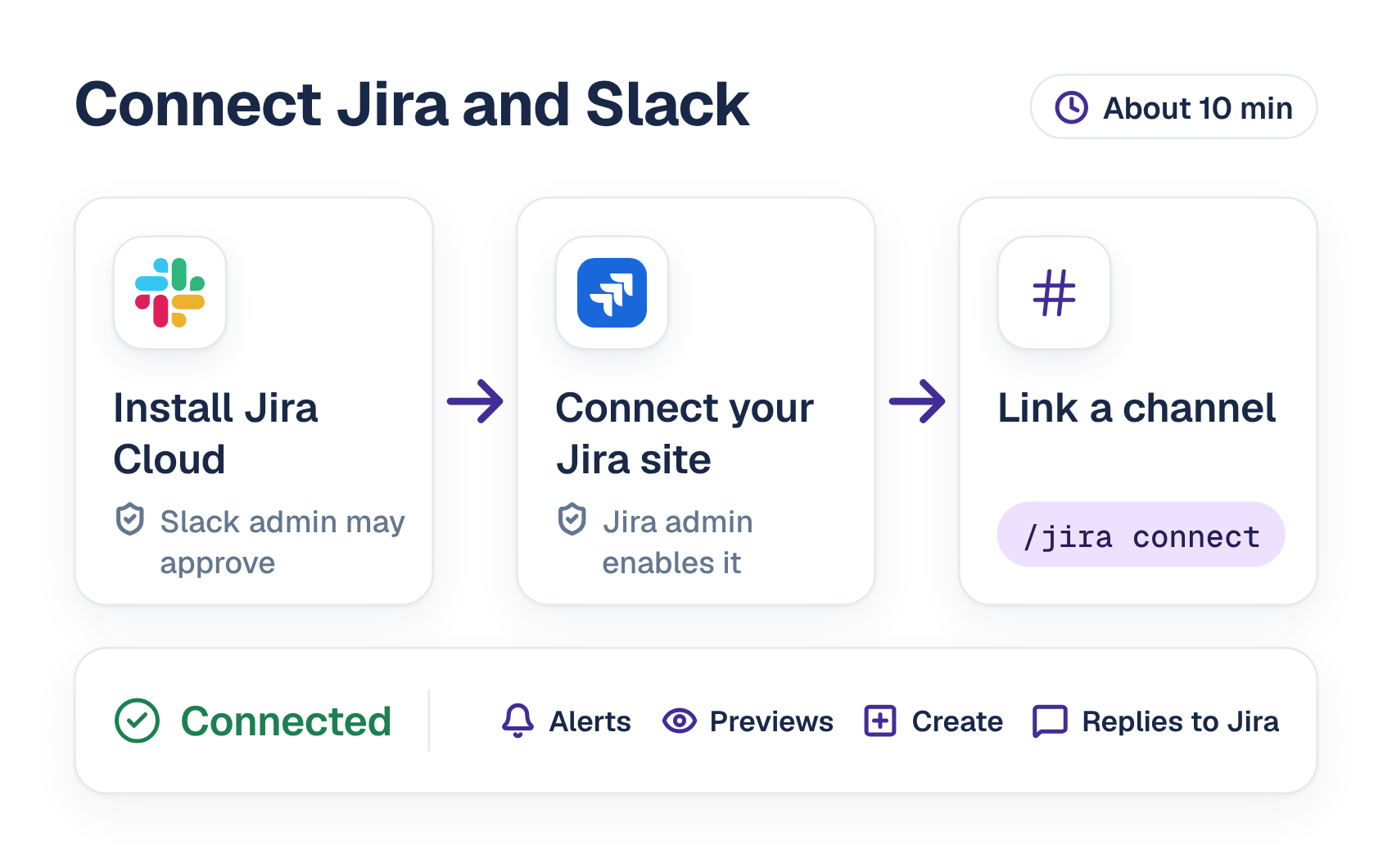
- Install Jira Cloud from the Slack Marketplace. Slack may route the request to a workspace admin for approval.
- Sign in with your Atlassian account. This links your Slack and Atlassian accounts and takes about a minute; the Jira Cloud app then sends you a direct message.
- Ask a Jira site admin to enable the Slack integration at https://<your-site>.atlassian.net/plugins/servlet/ac/jira-slack-integration/addon-config-page. New workspaces sit in "Needs review" until an admin approves them; you can use the integration in the meantime.
- Invite @Jira to any private channel that should see Jira. Uninvited bots cannot read private channels, by design.
- Run /jira connect in the channel. Choose the site, the project (Atlassian now calls these spaces), and the events you want. If your company has more than one Jira site, pick the one that owns your team's projects; the wrong site is the most common reason for "it can't see my project." Project admins can also do this from Jira under Project settings, Notifications, Connect to Slack, which is where the JQL filter lives.
- Check your personal notifications with /jira notify. They are on by default and arrive as DMs from @Jira. "Essentials" covers assignments, mentions, comments on your issues, and status changes on things you watch.
- Test it. Hover a message, choose More actions, then Create work item. Confirm the preview card renders and that the thread you created it from is now syncing into the issue as comments.
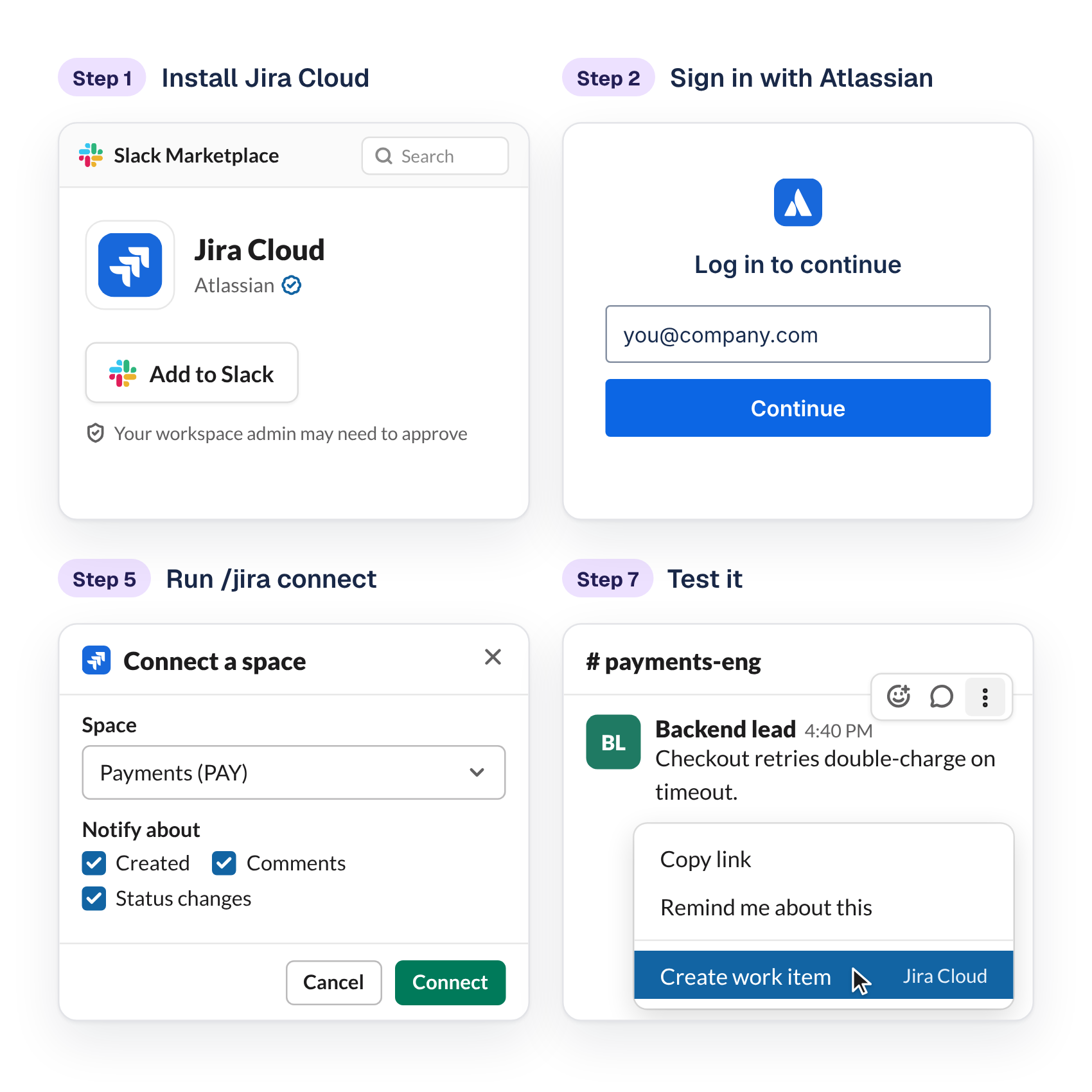
/jira connect and /jira notify, plus /jira create, cover most daily use. Every /jira, /jira_server and Troopr /t command, with examples you can paste, is in our guide to Jira Slack commands.
Which Jira products it covers
Atlassian's app connects a Jira Cloud site rather than a single product, so the same install covers Jira (formerly Jira Software), including the business projects that used to be Jira Work Management, and work items in Jira Service Management. Service Management also lets you connect a Slack workspace to a service project so requests raised in Slack become tickets; queues, SLAs, and the portal stay in Jira. Troopr is built for engineering work in Jira and supports business projects on Cloud too. For IT service requests in Slack, see Enjo.
Jira Cloud or Data Center?
Jira Cloud for Slack is Cloud only. Self-hosted teams use Atlassian's separate Slack for Jira Data Center app, whose command is /jira_server; the instance has to be reachable from Slack over HTTPS, and behind a firewall you get notifications only. Troopr connects to Jira Cloud and Jira Data Center on every plan, including Free, and Enterprise customers can run Troopr self-hosted inside their own network.
Do you need Rovo?
Not for the basics. Creating from a message, /jira create, notifications, and thread-to-Jira comments all work without Rovo. Rovo powers @Jira in natural language ("turn this thread into three tickets") and the AI prefill on the message action. It comes with paid Jira, Confluence, and Service Collection cloud plans and is metered by AI credits pooled across the organization: 25 per user per month on Standard, 70 on Premium, and 150 on Enterprise, reset monthly. So the real question is whether issue creation from Slack should draw on the same pool as everything else your org runs on it.
Notifications and creating tickets
Notifications. Personal notifications arrive as DMs from @Jira and are set with /jira notify, and /jira connect sends a project's events to a channel, filtered by issue type, priority, and event. Troopr adds per-channel JQL and status filters, batching from every minute to every 12 hours, and the option to open a synced thread on each notification, so triage happens where the alert landed. More in our guide to Jira Slack notifications.
How to create a Jira ticket from a Slack message
- From the message. Hover the message, choose More actions, then Create work item. If Rovo is on, switch on Use Rovo and it fills in the summary and description from the thread; otherwise you type them. Fill in the space, work type and any other fields, then submit. The thread then syncs into the new issue as comments.
- With a command. /jira create in any channel or DM opens a dialog where you pick the space and work type and enter a summary and description. Rovo does not fill it in here.
- By asking @Jira. With Rovo on, mention @Jira and describe the work in plain language. It reads the thread and fills in the space, work type and fields; /jira agent sets a channel's default space.
- From a Slack workflow. On paid Slack plans, the app's Workflow Builder template turns a form someone fills in into a new issue.
Troopr's create form shows the fields Jira requires for that project and issue type, and Task It fills in the title, description, priority and a suggested assignee from the message for you to confirm. Every way to do it, with screens, is in how to create a Jira ticket from Slack.
How to sync a Slack thread with Jira
From an issue's preview card in Slack, choose Sync with thread. Replies in that thread become comments on the issue, including messages posted before you clicked. Creating a single issue from a thread turns this on automatically. Atlassian documents it here.
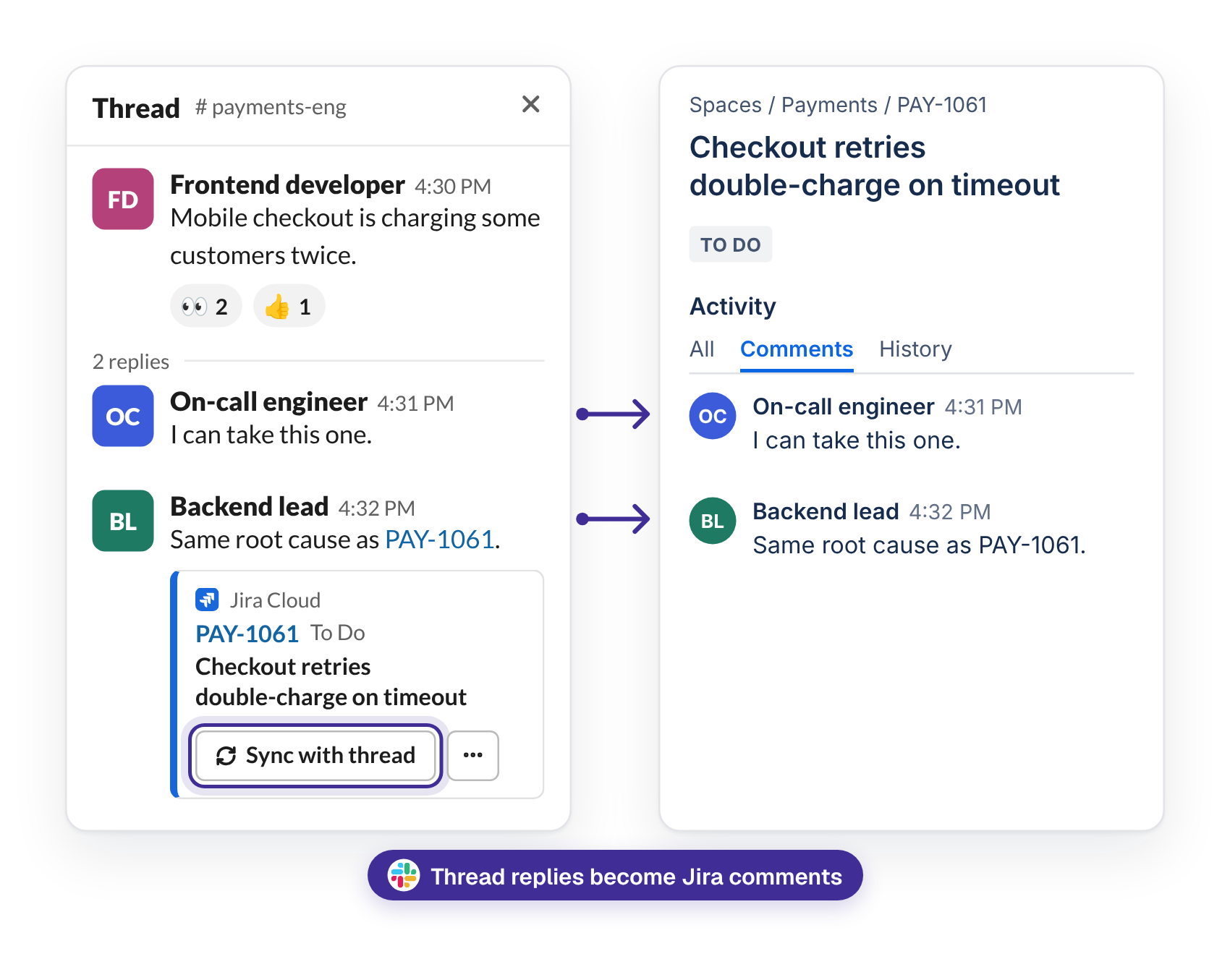
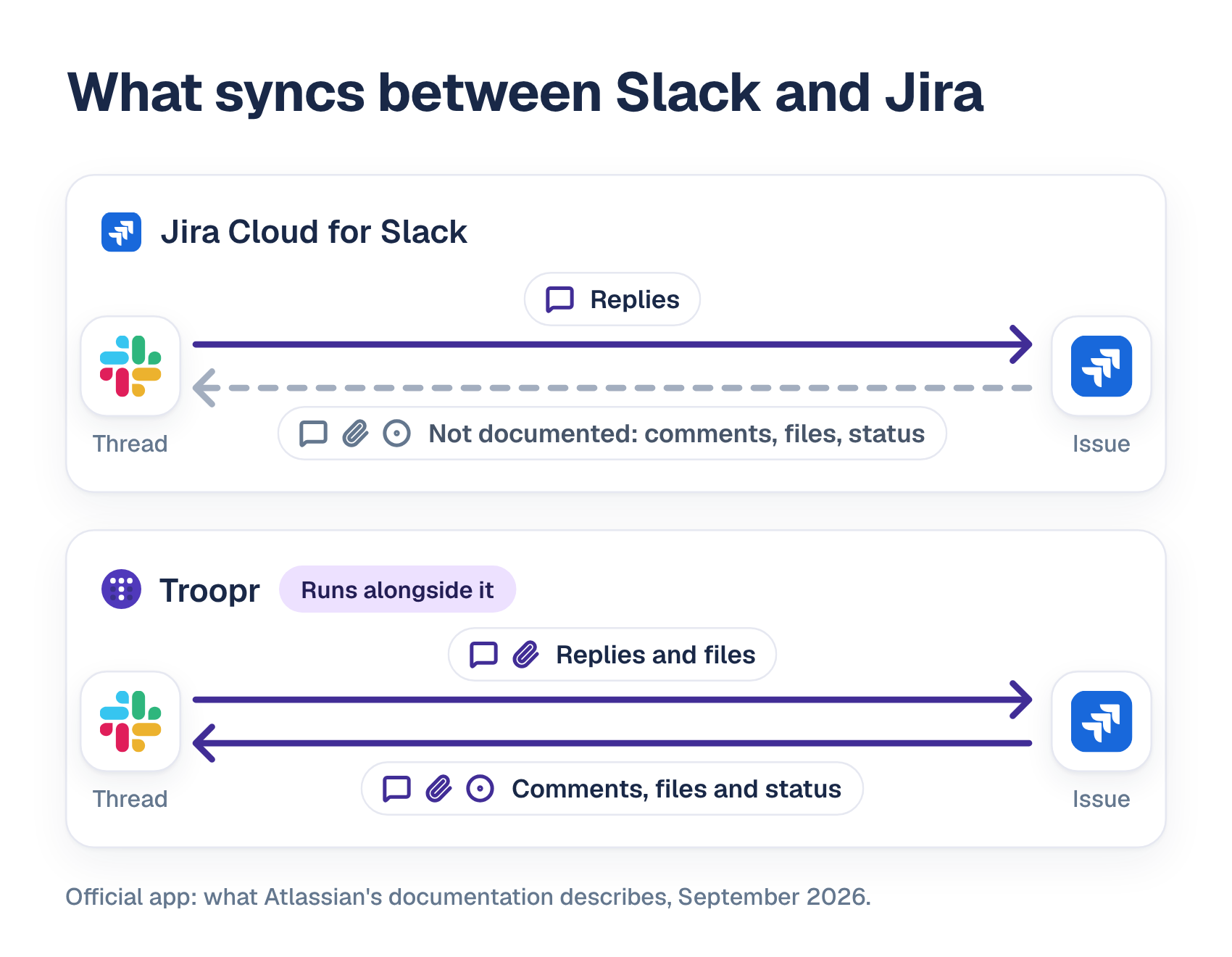
Atlassian documents one direction: Slack replies into Jira. It does not document Jira comments, attachments, or status changes coming back into the thread, and that return path decides whether the people in the thread ever see the engineer's "reproduced on staging" comment.
How to use Jira automation with Slack
Jira Automation. The Send Slack message action posts to a channel through a Slack incoming webhook, so a rule like "when an issue moves to Blocked, tell #eng-leads" needs nothing installed in Slack. It runs one direction and nothing comes back. Atlassian now meters automation in steps: the trigger, each condition and the Slack action all count against your organization's pooled monthly allowance, with usage-based billing from December 3, 2026 (how Atlassian counts it).
An issue moves to Blocked
Send Slack message to #eng-leads
- Slack Workflow Builder. The official app adds a workflow step that creates a Jira ticket from a form, on paid Slack plans.
- Webhooks and a bot you build. Jira webhooks plus your own Slack app give you exactly the behavior you specify. The first 30% takes a couple of weeks; the rest is OAuth with token refresh, per-user permission inheritance, rate limits on two APIs, a thread model that survives edits, deletions, and attachments, and maintenance as both APIs change. Wayfair built Slack-to-Jira bots in house, found that maintaining them pulled teams off core work, and switched.
Troopr adds automation that reads Jira for you: a sprint report posted to the channel, a nudge to the owner of an issue that has sat untouched, or a suggested Jira change the owner approves in one tap. Troopr calls these routines; more on them below.
Where the official app stops
The official app relays Jira into Slack, and for many teams that is enough. Here is where it stops. A stack trace lands in #payments-eng at 4:40pm, four people agree a fix in the thread, and someone files PAY-1061 from the message, so the thread is now syncing into Jira as comments.
- The return path is not documented. The on-call engineer comments "reproduced on staging, it's the retry logic" in Jira. Atlassian documents Slack replies flowing into Jira, not Jira comments flowing back, so check whether the four people in the thread ever see it.
- Files are not documented either. The screenshot posted in Slack and the log attached in Jira each stay where they were dropped, as far as Atlassian's docs go.
- A channel cannot be the project. You can subscribe a channel to a project's events, but you cannot make it behave like the project, where every conversation is a conversation on an issue and every Jira update arrives as a reply.
- People without a Jira license are left out. The PM asking "is this in 14.2?" has no Jira seat, and the official app's answer is to invite them to Jira when what they need is to be in the conversation.
- Required fields are not documented. Atlassian's create form asks for the space, work type, summary and description, and @Jira fills fields from the thread when Rovo is on, but neither says how a required custom field is handled. Test your strictest work type before you roll it out.
- Nothing for the ceremonies. No standups, no retros, no scheduled sprint reports, and no nudge when an issue sits untouched for five days, which is where most of a manager's week goes. The 10-minute weekly audit in our Jira best practices guide catches that by hand.
If your team needs any of these, there are three other ways to connect Jira and Slack.
Four ways to integrate Jira with Slack
Jira Cloud for Slack
Atlassian's free app: notifications, previews, create and update from cards, Slack replies into Jira as comments
Best forJira Cloud teams that want notifications and previews with occasional issue creation
Free; Rovo uses paid-plan AI credits
Jira Automation rules
One-way alerts to a channel through an incoming webhook
Best forA handful of high-value alerts
Uses your org's pooled automation steps
Build your own
Exactly the behavior you specify
Best forA unique requirement with a platform team behind it
Engineering time plus upkeep
Troopr
Two-way thread and channel sync, guests without Jira seats, required fields, standups and sprint reports
Best forTeams where work is discussed, triaged, and closed in Slack
Free for 10 seats, then $6 per seat/month
Troopr is ours, so weigh that card accordingly. Most teams end up running two of these: the official app for personal DMs, plus one of the others for the channels.
When the official app is enough
If your team needs personal notifications, issue previews, create or transition from a card, and Slack replies posting into Jira, the official app does that well. Add a second way when any of these is true:
- Jira comments, files, and status changes have to reach the Slack thread.
- A channel should work as the project, not just receive its events.
- The PM without a Jira license needs to be in the conversation.
- Issues have to arrive with the fields your workflow requires.
- You would like the standup written from the Jira activity that already happened.
Connect Jira and Slack both ways with Troopr
Troopr connects to the same Jira site from inside Slack and syncs Slack and Jira both ways, so the thread and the issue stay in step. It runs alongside the official app, so there is nothing to remove.
Set it up in four steps
- Start for Free: 10 seats, every feature, no credit card.
- Install Troopr from the Slack Marketplace or the Atlassian Marketplace in the workspace where your team already talks.
- Connect Jira as yourself with Sign in with Atlassian. You do not have to wait on an admin, and your updates post as you. Steps for Jira Cloud and Jira Data Center.
- Pair a project channel, create a test issue from a message, start a thread sync, comment from Jira, and watch it land in Slack.
Try two-way sync on your own Jira site. Free for 10 seats, every feature, no credit card.
What changes once Troopr is connected
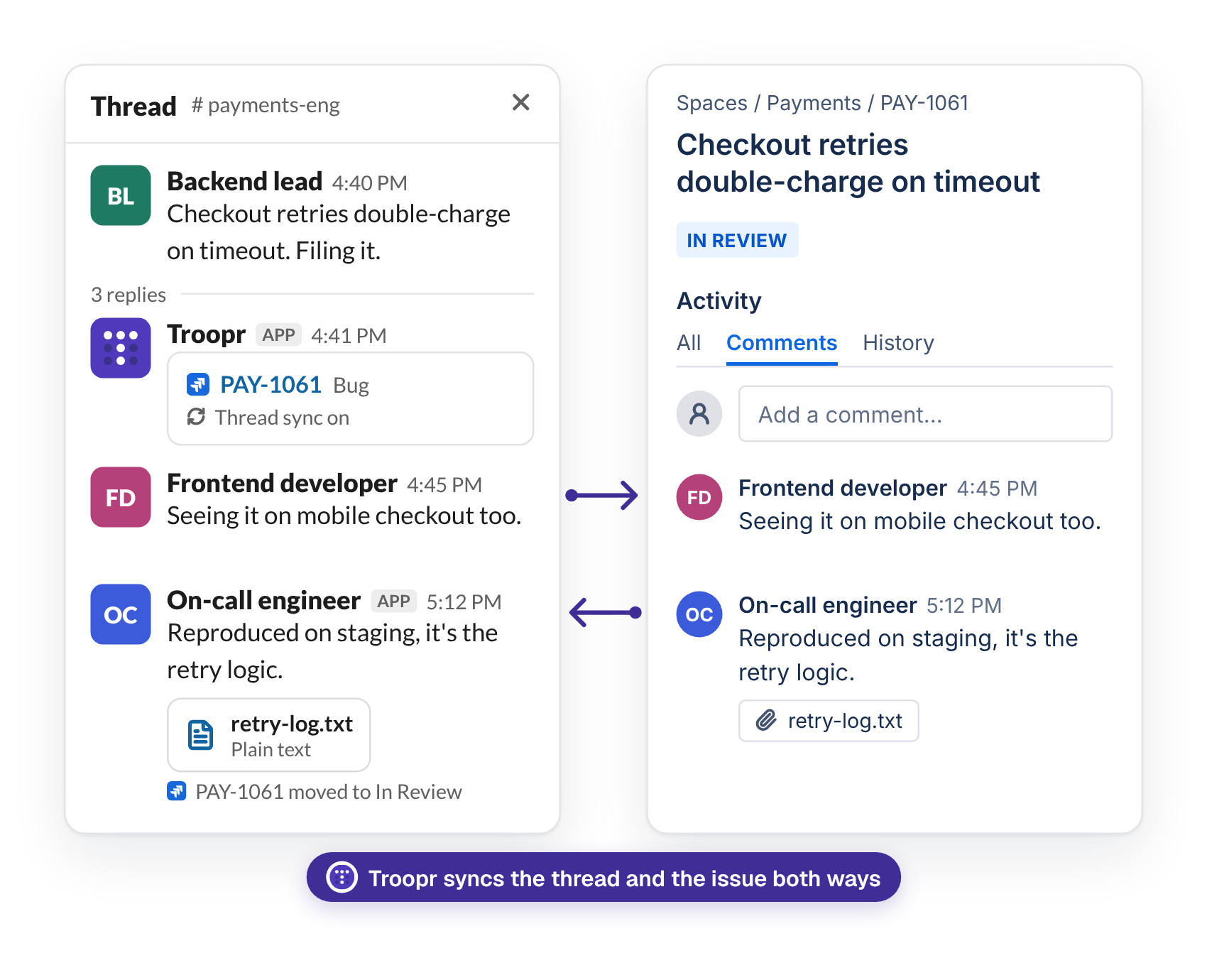
- Threads sync both ways. Start a sync from any issue card, or switch it on for a whole channel or workspace. Slack replies post to Jira as comments in the writer's name; Jira comments, edits, attachments, and status changes come back into the thread. How thread sync works
- A channel can be the project. Pair a channel with a Jira project or a single issue, and Troopr can open a synced channel when an issue is created or reaches a status. Channel sync
- People without a Jira license can take part. They join the synced conversation through an account your admin authorizes, and their actions are attributed to them. Guest access
- Notifications go to the right channel, filtered by JQL and status transitions, real time or batched, compact or detailed.
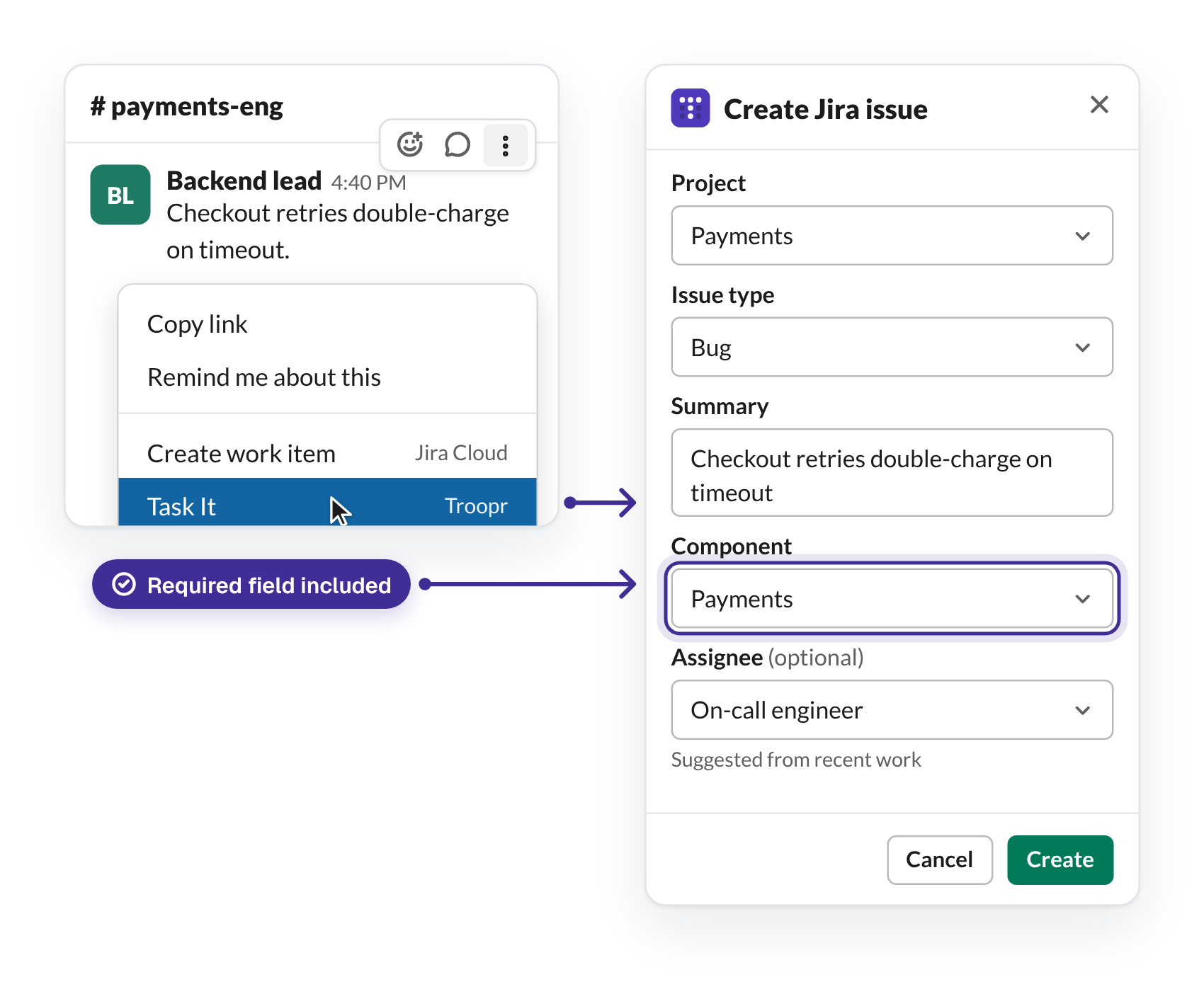
- Issues arrive with the fields your workflow needs. From any message, Task It drafts the issue, with title, description, priority, and a suggested assignee, on a form that knows your required fields. Nothing is written until a person confirms. It is one of thirteen ways to create an issue from Slack, alongside a configured emoji, /t create, and channel auto-create; see how to turn a Slack message into a Jira ticket.
Standups and sprint reports from the same connection
Once Jira and Slack agree, Troopr does the coordination around them. It forms its own view of the team from real Jira, GitHub, and Slack activity, so it can take two jobs off the manager, both included on every plan, including Free.
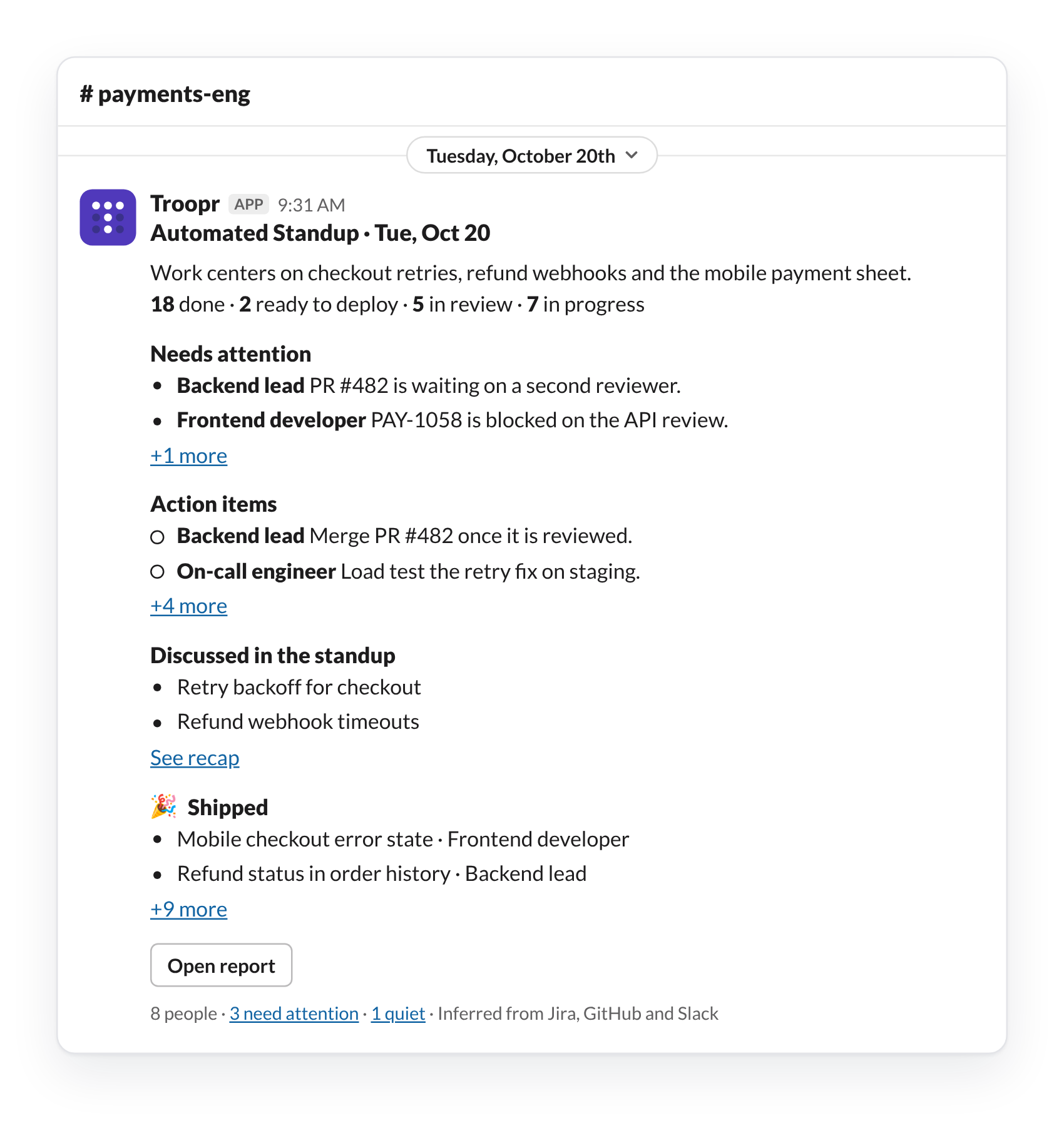
- The standup that writes itself. Troopr Check-ins drafts each person's update from their own Jira, GitHub, and Slack activity and asks only when it cannot tell what they are working on. Snowflake eliminated ~86% of its weekly status-meeting time.
- Reports and nudges on a schedule. A routine is a standing instruction in plain English. A report reads Jira and changes nothing; a nudge asks one person about their own work; a proposal offers a change, like moving a ticket whose PR merged, and the owner confirms in one tap, with the write running under their own Jira login. Any routine can stay silent unless something is wrong.
Troopr and the official app, side by side
| Capability | Jira Cloud for Slack (official) | Troopr |
|---|---|---|
| Slack thread to Jira comments | Yes; automatic on single create | Yes |
| Jira comments back to the thread | Not documented | Yes |
| Attachments both ways | Not documented | Yes |
| Channel works as the project | Event subscriptions only | Channel sync |
| People without a Jira license | Invite them to Jira | Guest facilitation |
| Required fields on create | Custom fields not documented | Dynamic forms with your required fields |
| Issue creation entry points | Message action, /jira create, @Jira (Rovo), Workflow Builder | Thirteen, Task It on every plan |
| Standups, retros, planning poker | No | Check-ins, every plan |
| Scheduled Jira reports and nudges | No | Routines, every plan |
| Jira Data Center | A separate Data Center app | Cloud and Data Center, every plan; self-hosted on Enterprise |
| Price | Free app; Rovo metered by credits on paid cloud plans | Free for 10 seats, then $6 per seat/month; readers free |
Official app column verified against Atlassian's documentation and the Slack Marketplace, November 2026. The full comparison goes row by row.
Teams that stopped copy-pasting between Slack and Jira
"Among other options, we picked Troopr because it was cleared by our internal security team and Jira integration worked with our hosted Jira server. Troopr seemed to boast stable development and responsive support team."
Engineering, Netflix
Troopr is trusted at 600+ enterprise deployments, including Netflix, Snowflake, Roku, Wayfair, Yahoo, and Starbucks. Customer stories
Security and permissions
Troopr connects to Jira with per-user OAuth, as you by default, and inherits your Jira permissions: it refuses any action in Slack that you could not perform in Jira, and every write is attributed to the person who confirmed it. Admins decide which projects each channel may touch. Troopr is SOC 2 Type II and ISO 27001 certified, both audited annually by a third party, and GDPR compliant. Data is encrypted with TLS 1.2 in transit and AES-256 at rest, hosted on AWS with US or EU residency, and customer data never trains a model. Netflix's engineering team cleared Troopr through its internal security review. Security
One caveat on Atlassian's own tooling: on Jira Cloud, issues under a security scheme do not generate Slack notifications, and Atlassian's Slack for Jira Data Center app does not respect issue security levels the same way, so treat any Data Center channel mapping as a security decision.
Troubleshooting
| Symptom | Likely cause | Fix |
|---|---|---|
| "It can't see my project" | The wrong Jira site is connected, or you lack Browse Projects permission | Reconnect and pick the site that owns the project, or fix the permission in Jira |
| A private channel stays silent | The bot was never invited | Run /invite @Jira (or /invite @Troopr), then connect again |
| Workspace stuck in "Needs review" | A Jira site admin has not approved the Slack workspace | Ask the admin to approve it on the integration's config page |
| Some issues never notify | On Jira Cloud, issues under a security scheme do not send Slack notifications | Expected behavior; check the issue's security level |
| Self-hosted Jira connects, nothing arrives | No network path to your instance | Allowlist Troopr's published IPs, or use agent mode or the self-hosted option |
| Troopr writes show the wrong name | Someone else completed the Jira OAuth | Reconnect Jira as yourself |
Still stuck: check Atlassian status and Slack status first.
Frequently asked questions
How do I integrate Jira with Slack?
Install Jira Cloud for Slack from the Slack Marketplace, sign in with Atlassian, have a Jira site admin enable the integration, invite @Jira to private channels, and run /jira connect in the channel. It takes about ten minutes. For Jira comments and files flowing back into threads, channel sync, guests, and required fields on create, add Troopr.
Is the Jira Slack integration free?
Atlassian's app is free. Rovo, which powers @Jira in natural language and pre-fills the summary and description, comes with paid Atlassian cloud plans and is metered by pooled AI credits. From December 3, 2026, credits used past the monthly allowance are billed at a list price of $0.01 each while pay-as-you-go is on, which is the default (Atlassian's Rovo credits). Troopr is free for 10 seats with every feature, three synced channels, and three routines, with no credit card. Beyond that it is $6 per seat/month, and people who only read never need a seat. Pricing
How do I sync a Slack thread with Jira?
In the official app, choose Sync with thread on an issue's preview card; replies in the thread then post to Jira as comments, and sync turns on automatically when you create a single issue from a thread. Atlassian documents the Slack-to-Jira direction. Troopr syncs both ways, with Jira comments, attachments, and status changes posting back into the thread, and sync can start automatically for a channel or the whole workspace.
How can I use Jira automation in Slack?
Use Jira Automation's Send Slack message action for one-way alerts to a channel, or a Slack workflow that creates a Jira ticket from a form. Troopr adds routines: plain-language instructions that post reports, nudge the owner of a stale issue, or propose a Jira change the owner confirms in one tap. Troopr's own Workflow Builder step, which creates an issue with the fields you map, is available on Enterprise.
Is Jira end of life?
No. Jira isn't being phased out; Atlassian is retiring self-hosted Jira. Jira Server reached end of support in February 2024, and Jira Data Center reaches end of life on March 28, 2029, when it turns read-only. Existing Data Center customers can buy new subscriptions and expansions until March 30, 2028. Jira Cloud continues. Troopr supports both Cloud and Data Center, so teams can use it before and after the move.
Does it work with Jira Data Center?
Atlassian's separate Slack for Jira Data Center app (/jira_server) needs an instance reachable over HTTPS and is notification-only behind a firewall. Troopr supports Jira Cloud and Data Center on every plan, including Free, with fixed IPs for allowlisting, an agent mode for firewalled instances, and a self-hosted option on Enterprise.
Do Slack users need Jira accounts?
To write to Jira, yes, with either app, because Jira permissions are the source of truth. Troopr's guest facilitation lets people without a Jira license take part in a synced thread, and a Troopr seat is only needed by people who take action.
Do I have to remove the official app to use Troopr?
No. Both run side by side. Many teams keep the official app for personal DMs and use Troopr for channel sync, filtered notifications, standups, and reports.
Further reading: Jira Slack commands · Jira notifications in Slack · Create Jira issues from Slack · Troopr vs the official Jira Cloud app · Troopr docs
Run Jira from Slack, both ways. Free for 10 seats, no credit card.


The AI project manager for engineering teams. Forms its own view of the work and does the coordination, right where your team already works.
2035 Sunset Lake Road, Suite B-2, Newark, DE 19702, United States.