

Jira Slack Automation: Rules, Workflows and What They Cost (2026)
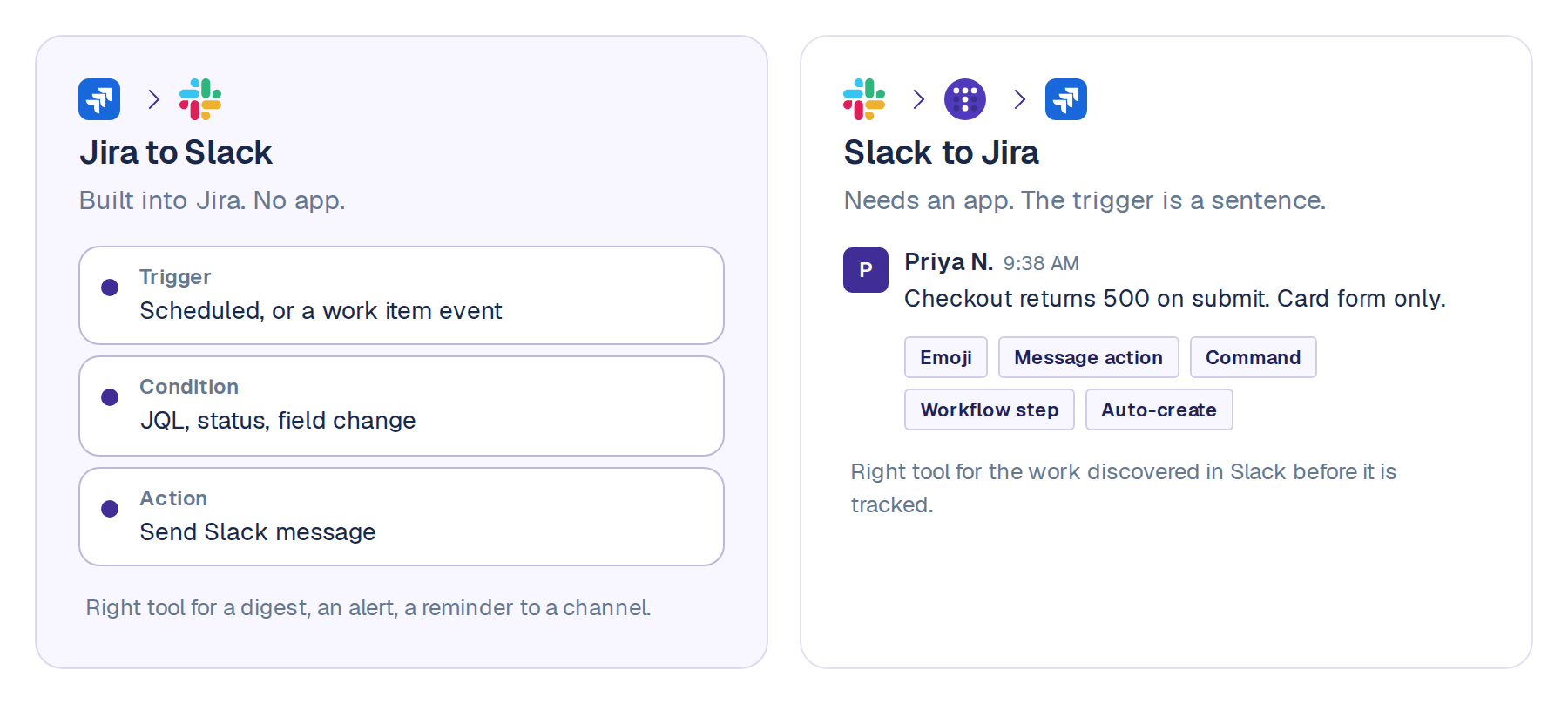
Jira Slack automation runs in two directions. Jira to Slack is built into Jira: an automation rule with a trigger, a JQL lookup and a Send Slack message action, no extra app needed. Slack to Jira needs an app, and fires from an emoji, a message action, a command or a workflow step. Most teams end up running both.
This page covers both directions and does the cost math Atlassian's own pages skip now that automation is billed by the step.
Start for Free or Book a Demo.
What is Jira Slack automation, exactly?
Two things get called this, and they work nothing alike.
The first is Jira pushing information out. You build a rule inside Jira that watches for something, checks a condition, and posts a message to a Slack channel. Atlassian ships this, and it costs nothing extra until the organization's step allowance runs out. The first half of this page is about getting it right.
The second is Slack pushing work in. Someone reports the checkout page throwing 500s in a channel, four people reply, and a ticket should exist a second later with the reporter, the thread and the screenshot already on it. Jira automation cannot reach that, because the trigger is a human sentence in a channel. That side needs an app, and the second half of this page is about what the app can do that a rule cannot.
One warning before the steps, because it will confuse you inside Jira this month. Atlassian is mid-rename. The support docs now say automation flows and work items; the template library and the rule builder still say rules and issues. Same feature, two vocabularies. This page says rule, because that is still what the screen you are looking at says.
How do I send a Slack message from a Jira automation rule?
Four steps. Open your project, then Project settings, then Automation, then Create rule.
Step 1. Pick the trigger
Every rule starts with one. For anything recurring, use the Scheduled trigger, which takes a plain interval or a cron expression when you want 09:15 on weekdays only. For something that reacts to work, Work item created and Work item updated are the two you will reach for most.
Pick the narrowest trigger that can do the job, and not for tidiness. The trigger is billed every time it fires, which is the part of this that changed in 2026.
Step 2. Add Lookup work items
This is the action that runs a JQL query and holds the results for whatever comes next. For a digest of the open sprint, Atlassian's own query is a fine place to start:
Sprint in openSprints() AND statusCategory != Done
Two limits are worth knowing now rather than at 9am on a Monday. Lookup work items uses only the first 100 results. A scheduled JQL search caps at 999 work items. Past either number the rule does not warn you, it truncates quietly.
Step 3. Add Send Slack message
This action does not use the Jira Cloud for Slack app you probably already have installed. It posts through a Slack incoming webhook that you create in Slack and paste into the action, a different mechanism with different permissions. There is a section on that below, because it is where most setups stall.
Then write the message. Plain text works, but what people actually want is a list of live links, and that needs smart values:
{{#lookupIssues}}
- <{{url}}|{{key}}> {{summary}} ({{assignee.displayName}})
{{/}}
Everything between {{#lookupIssues}} and {{/}} runs once per result. The angle bracket and pipe are Slack's link syntax rather than Jira's, which is the detail that trips people up on their first rule.
Step 4. Test it before you turn it on
Switch the trigger to Manual, point the message at a channel nobody else is in, and run it. Then read the audit log, because every run is recorded with its result. A status of THROTTLED means you hit a service limit rather than a configuration mistake, and the two are easy to confuse.
Why does the Slack action need a webhook, and what if you cannot create one?
This is the step that stops most people, and the page currently ranking first for this query does not mention it.
Creating an incoming webhook in Slack needs permission to add integrations. Plenty of workspaces restrict that, and you will see one of these:
Only certain users are allowed to add and edit integrations
This app is not allowed to be installed on this workspace
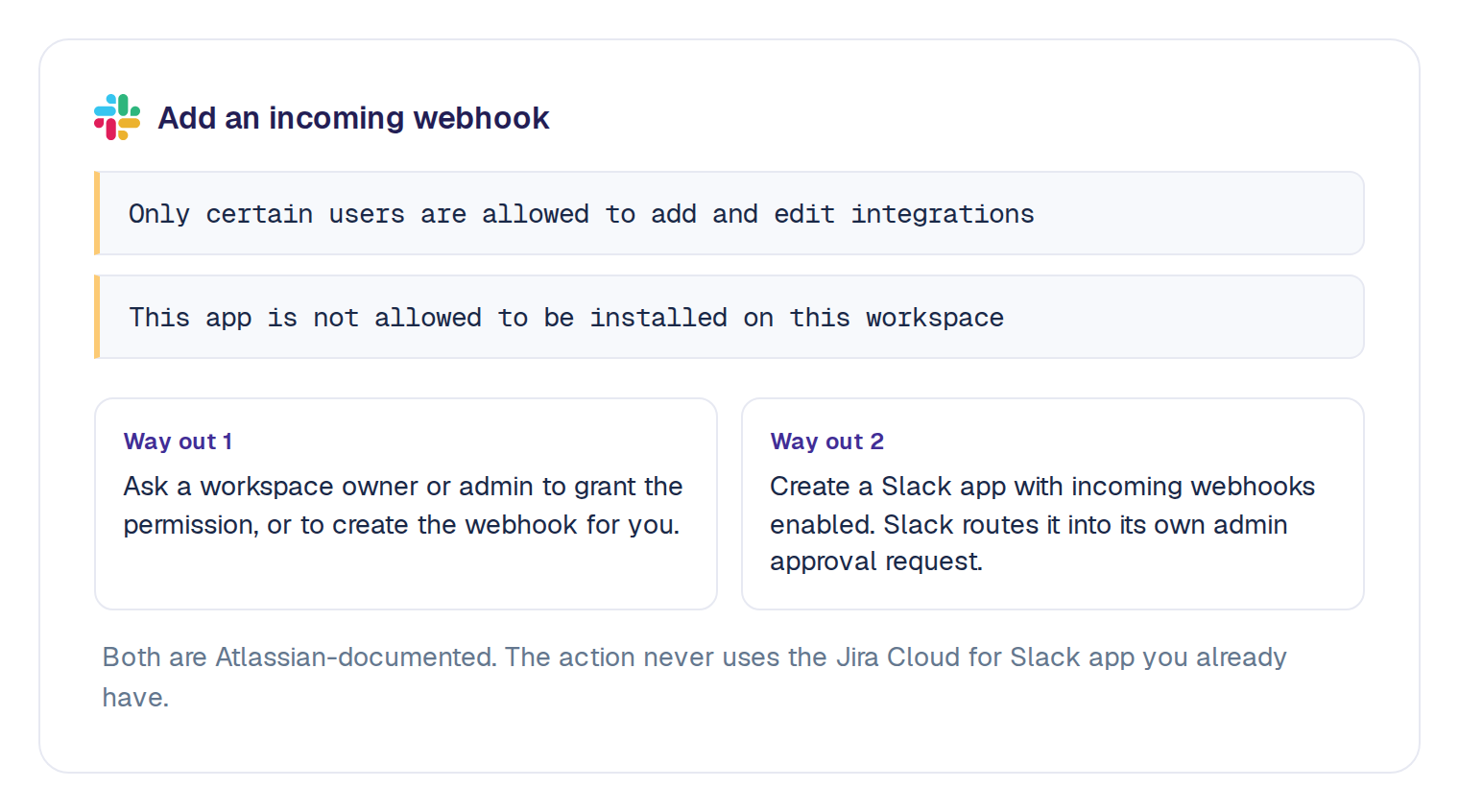
Atlassian documents two ways out. Ask a Slack workspace owner or admin either to grant you the permission or to create the webhook for you. Or create a Slack app with incoming webhooks enabled, which triggers Slack's own admin approval request, so you can submit it yourself instead of chasing someone down.
On Jira Data Center the setup differs slightly. From Automation for Jira 9.0.0 onward you store the webhook URL as a secret key and reference that key in the action rather than pasting the URL in. Everything else here holds.
What will these rules cost from December 2026?
Here is the part that changed, and almost nothing written about Jira Slack automation has caught up with it.
Atlassian has moved automation off per-app monthly rule limits and onto usage-based automation steps, pooled across your whole organization. Extra usage billing takes effect on 3 December 2026. The meter has been counting in Atlassian Administration since 1 September, so an admin can read the real number today under Insights, then Platform usage, rather than estimating it in November.
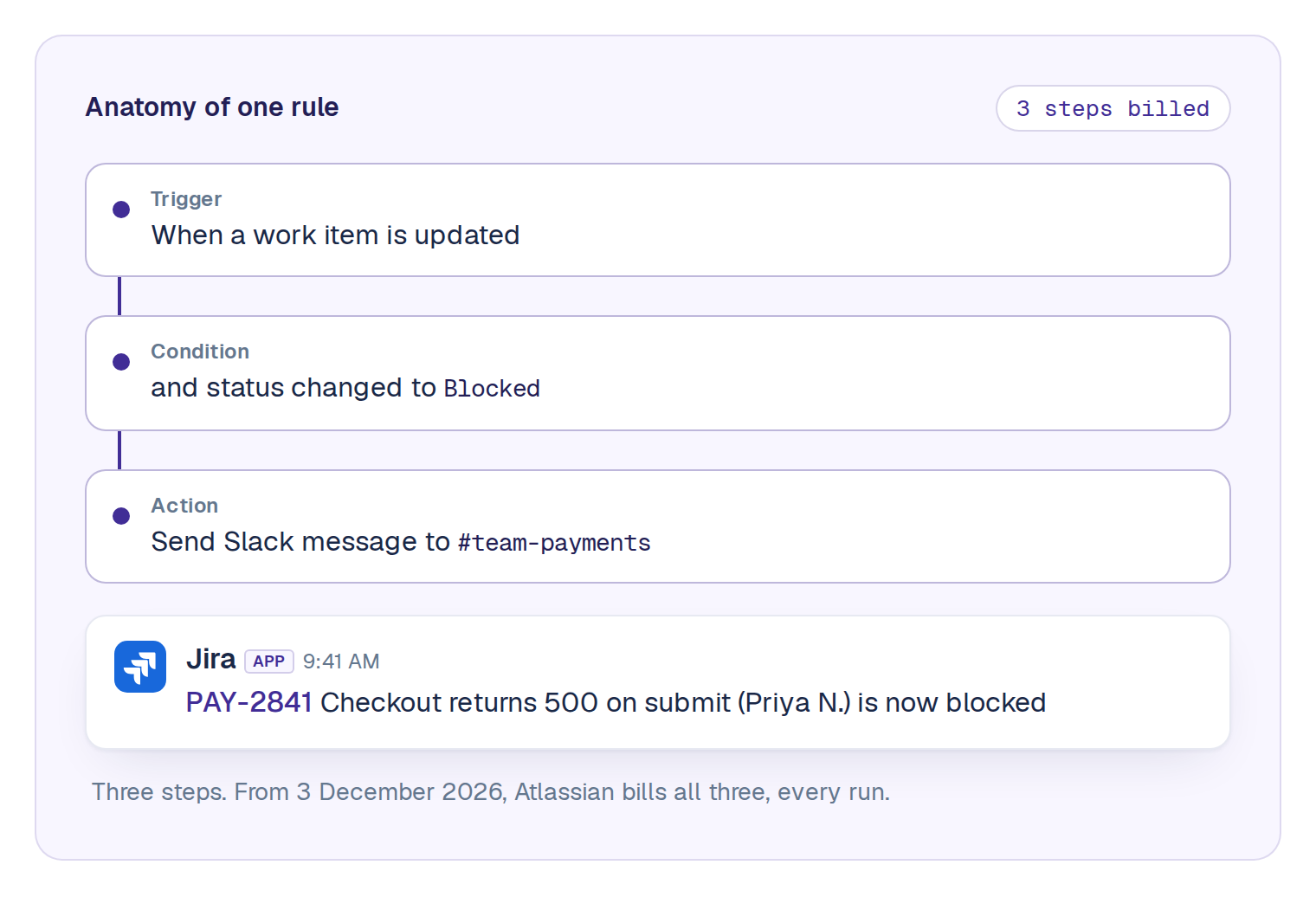
A step is one executed part of a flow. Triggers, conditions, actions, branches and loops each count as one every time they run. So the daily digest built above is three steps a run: the scheduled trigger, the lookup, the message. Thirty runs a month is roughly 90 steps.
Two details in that model matter more than the headline number.
A trigger is billed even when it matches nothing. Atlassian lists NO_MATCH as a charged status, alongside NO_ACTIONS_PERFORMED and ABORTED. A rule on Work item updated in a busy project runs its trigger and its condition on every update, and you pay for both on the runs where the condition fails and no message gets posted.
The allowance is pooled at the organization level, not per project or per team. Your rule shares a budget with finance's flows and IT's flows. If your org admin has extra usage switched off and the pool reaches 100%, every flow on the site stops until the usage date resets, not just yours.
| Jira plan | Automation steps per month |
|---|---|
| Free | 150 per subscription |
| Standard | 400 per seat |
| Premium | 750 per seat |
| Enterprise | 1,000 per seat |
Enterprise is the one to look at twice, because it used to include unlimited automation and now carries a defined allowance like every other plan.
Overage is $0.50 per 1,000 steps, so nobody is getting a shocking invoice. Extra usage is on by default, and admins get an alert at 80% and again at 100%. That is exactly what makes this easy to ignore until it stops something. Three things bite instead of the money.
Jira Free has no real allowance. 150 steps covers the entire subscription, not per seat, and one daily digest takes 60% of it.
The pool is not yours. The allowance is the sum of every Atlassian app you run, pooled at the organization level, so Confluence and Jira Service Management flows spend the same budget as your Slack digest. You cannot see what they are drawing, and you cannot reserve any of it.
When it runs out, everything stops. If your org admin has extra usage switched off, reaching 100% halts every flow on the site until the usage date resets. Including the ones other teams built and depend on.
What no number of steps buys. The rule posts as the automation actor, so Jira's history says the automation did it rather than the person whose work it was. It cannot address one person without a hardcoded Slack member ID. It cannot ask a question and wait for the answer. It cannot offer a change for someone to confirm. And it cannot tell you whether anybody did anything about the message it sent. That is the part worth costing, and none of it is on the meter.
The other metering model, for contrast: a Troopr routine is one unit whatever its type, and what it produces is never counted. A routine raising ten proposals in a week is still one unit. Free includes three, and nothing they produce is ever billed.
Four more service limits are worth knowing before you build something ambitious. A rule holds 65 steps, or 500 on an advanced rule. Total processing time is capped at 60 minutes per 12 hours. Concurrent rules are capped by plan, from 5 on Free to 30 on Enterprise. And loop detection stops any rule that triggers itself 10 times in quick succession.
Six rules worth copying
Each uses documented triggers and standard JQL, so you can build them in about five minutes.
Say something the moment work gets blocked
- Trigger Work item updated
- Condition Status changed to Blocked
- Action Send Slack message with key, summary, assignee
Three steps on a match, two on the updates that miss.
Post the open sprint every morning
- Trigger Scheduled, weekdays 09:00
- Lookup
Sprint in openSprints() AND statusCategory != Done - Action Send Slack message, the loop snippet from Step 3
Three steps a run, about 66 a month.
Catch the ticket that has gone quiet
- Trigger Scheduled, Mondays 08:00
- Lookup
Sprint in openSprints() AND status = "In Progress" AND updated <= -3d - Action Send Slack message
Three steps a run, about 13 a month, and the one that most reliably earns its keep.
Put the week's due dates in front of people once
- Trigger Scheduled, Mondays
- Lookup
duedate <= endOfWeek() AND statusCategory != Done - Action Send Slack message
Three steps a run. One message beats five reminder emails.
Say it once when a Highest-priority bug lands
- Trigger Work item created
- Condition Type is Bug and Priority is Highest
- Action Send Slack message with key, summary, reporter
Three steps on a match, two on everything else created that day. Narrow the project in the condition or this one runs on every ticket in the site.
Announce the sprint, and its goal, when it starts
- Trigger Sprint started
- Action Send Slack message with
{{sprint.name}}and{{sprint.goal}}
Two steps a run, once a sprint. No lookup needed, because the sprint smart values are already on the trigger.
One limitation to design around. Send Slack message addresses individuals by Slack member ID, and it has no way of deriving that from a Jira account. Atlassian's docs are explicit that a member ID is not a display name. So either you hardcode IDs, which nobody maintains, or you post to a channel. Chasing one person about their own ticket is not something a Jira rule does well.
How do I automate the other direction, from Slack into Jira?
Everything above starts in Jira. The harder half starts in Slack, because that is where work gets discovered before it gets tracked, and it is the half that costs your team its afternoons.
Roku's engineering teams cut Slack to Jira context switching by about 45%, worth roughly 1.8 focused hours per engineer per day.
Roku, engineering, Jira on-premise
A Jira rule cannot reach this side, and that is not a flaw in it. A rule waits for an event inside the system it lives in. Here the trigger is a sentence somebody typed in a channel, and no rule is watching.
That gap is the job Troopr does. Troopr is the AI project management agent for engineering teams: it reads the team's real Jira activity, forms its own view of what is actually happening, and does the coordination that follows. It files the ticket nobody got round to writing, keeps a Slack thread and a Jira issue in sync in both directions, and when the board stops matching reality it proposes the fix to the person who owns the work instead of writing it behind their back.
The part that matters on an automation page is that reading and acting are the same primitive here. A routine is one sentence in plain language, and the same sentence can read the board and tell you, ask the one person who knows, or offer the change itself. A team that starts with a Friday report gets to acting without learning a second product, and nothing reaches Jira until somebody confirms it.
.png)
Seven mechanisms, roughly in the order teams adopt them.
An emoji as the trigger
A configured reaction turns a message into an issue with the channel's project, issue type and field defaults already filled in. Emoji actions are set at workspace, channel or personal scope, each with its own defaults, and each can open the form always, only on failure, or never. The person who found the bug never leaves the thread.
The same mechanism runs the other actions too. One reaction assigns the issue to you, another marks it done with a resolution, another adds the message as a comment. A team ends up with a small vocabulary of reactions that everyone knows, and the board stays current without anyone opening Jira.
A channel that files its own tickets
Four auto-create modes, and the third is the one people do not expect. Every top-level message becomes an issue, with an opt-out emoji. Or any emoji configured for creation. Or a message with no reply after five minutes becomes an issue, cleared if someone reacts to it. Or a button posted in the thread that prompts the author. Intake channels run on the third one.
Bot-posted messages from other apps can be converted too, with allow and block lists, so an alert from a monitoring tool becomes a ticket without a person in the loop. Existing issue keys in a message are previewed rather than duplicated, which is the detail that stops an intake channel from filing the same bug twice.
One command with the fields already in it
/t create Checkout 500s on submit @priya +Priority:High +Labels:checkout creates the issue without opening a form. Field names match Jira's own, custom fields included, and anything you leave out opens the form pre-filled with whatever was parsed. Per-channel defaults sit underneath, and project restrictions stop a channel filing into the wrong project.
Admins can also define their own keywords, each with a saved project, issue type and field defaults, so /t bug means one thing in the payments channel and another in the mobile channel. The same grammar works by mention and in a DM. Every /t keyword, with syntax you can copy, sits next to the official /jira commands in every /jira and /t command, ready to copy.
A Slack workflow step
Two different things share this name. Slack's own Workflow Builder ships Jira Cloud and Jira Data Center connectors with a Create an issue step, and those connectors are built by Slack rather than Atlassian, which is why their support path runs through Slack. Troopr ships its own Create Jira issue step with field mapping on Enterprise. Workflow Builder availability depends on your Slack plan, so check that before designing around it.
The workflow step is the right shape when intake needs a fixed form rather than free text: a bug report with severity and affected surface as required fields, filed by anyone, without a Jira licence. It is the wrong shape for anything that starts as a conversation.
A channel that creates itself for the work
A rule per project, with an optional JQL filter and a condition of either issue created or a field reaching a target value, creates a Slack channel named from the issue key and summary, invites the reporter, assignee and watchers, and writes the channel link back onto the issue. Incident work runs on this.
Once the channel exists it is a synced channel: every top-level message becomes a Jira comment as its author, Jira activity posts back, attachments move both ways, and people without a Jira licence take part through guest facilitation. The sync stops itself when the issue reaches done, and the conversation can archive to a private channel.
A rule that stays quiet until something is true
In Troopr a routine is a standing instruction written in plain language, and any routine can be a watch: it checks on its cadence and speaks only when its condition holds, so silence carries information. Four watch conditions, being an issue count against a threshold, the sum of a numeric field against a threshold, issues untouched for N days, or any JQL.
This is the closest thing on the page to a Jira rule, with two differences that matter after the December change. The quiet runs cost nothing, because the routine is the metered unit and not what it does. And each quiet run is still visible: the routine's last result reads "checked, nothing to say," so you can tell a working watch from a broken one.
A rule that proposes the change instead of making it
This one has no counterpart in native automation. A proposal drafts the Jira change and routes it to whoever owns the work: a due date that has passed, a ticket with no assignee, a merged pull request whose ticket still says in progress, something raised in a check-in that no ticket covers yet. Nothing is written until they confirm, the proposal is revalidated against live state at that moment, and if someone already did it by hand it clears itself and says why.
Dismissing one with a reason turns that reason into a working agreement later proposals respect, and a routine dismissed repeatedly pauses itself. Everything waiting on a decision lands in one place, Needs you, alongside the items that cleared on their own.
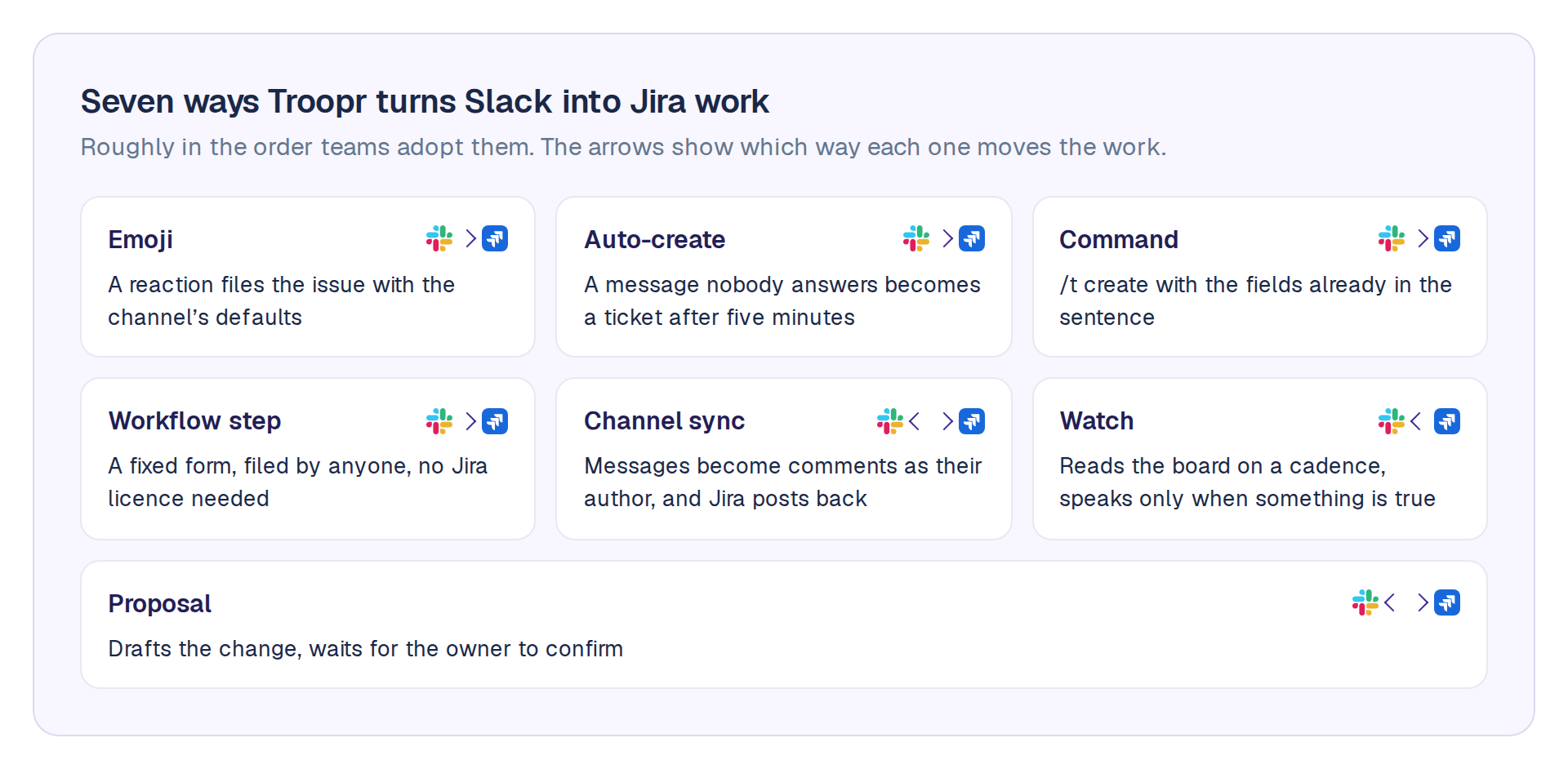
Troopr opens a Jira issue from Slack at thirteen entry points, from Task It, which drafts the whole issue from one message, through to a channel that auto-creates, and the product page for managing Jira issues from Slack walks through the seven most teams use first. The seven above are the ones with automation behind them, and the walkthrough of every creation method covers the rest.
On metering, a routine counts as one unit whatever its type. Free includes 10 seats, 3 synced channels and 3 routines, every feature included, and a synced channel is one of only two things Troopr meters.
Can you automate the whole Jira Slack workflow, not just the notifications?
Everything so far moves information. A rule tells a channel that something changed; an emoji files what somebody found. The workflow an engineering team actually runs is wider than that: a daily standup, a planning session, a retrospective, the constant small work of keeping the board honest, and the report somebody assembles before every review. Each of those is a coordination job, and each is one Troopr does from the same standing instruction.
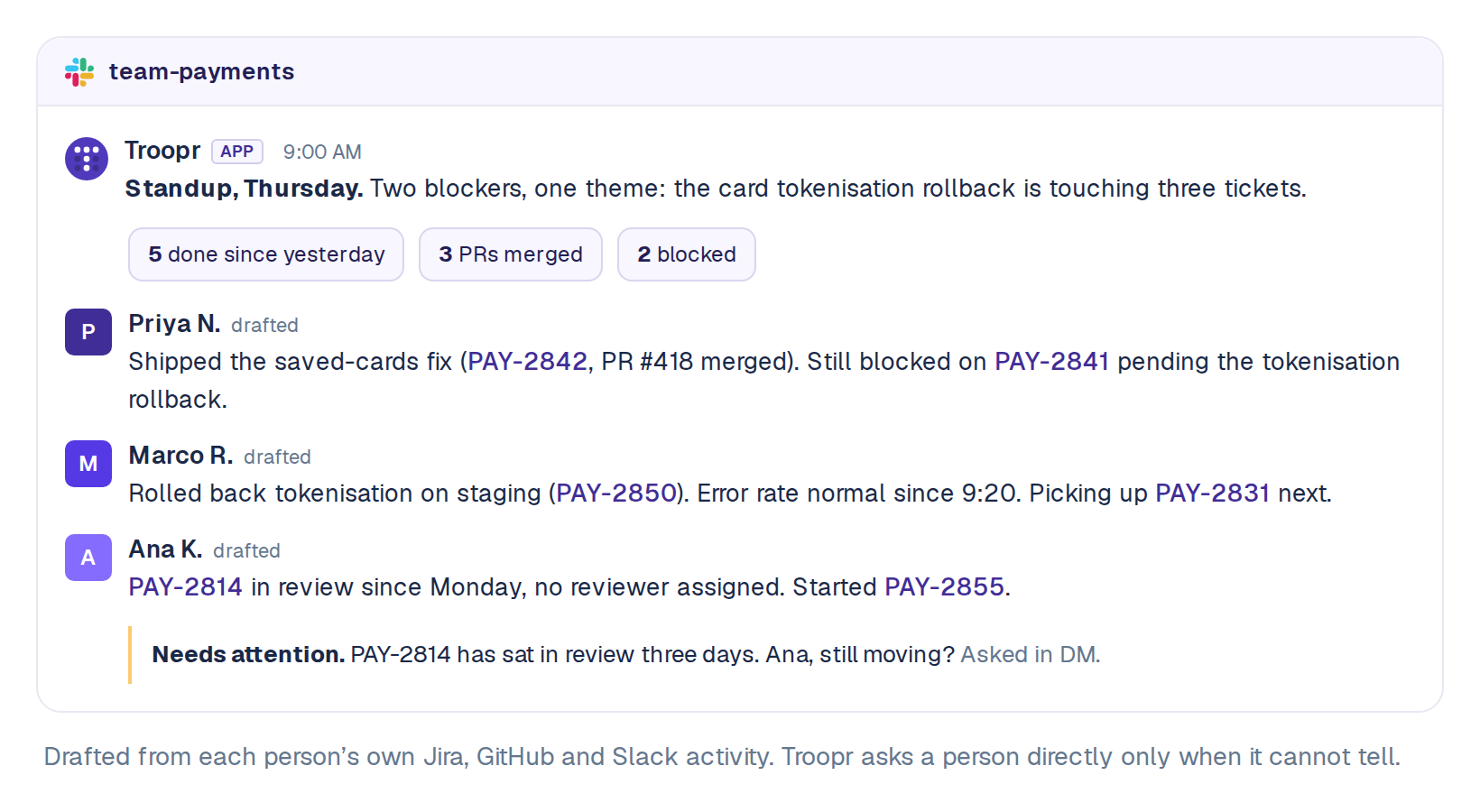
The standup that writes itself
Troopr drafts each person's update from their own Jira, GitHub and Slack activity and posts it to the team channel, asking someone directly only when it genuinely cannot tell what they are working on. The draft is grounded in the team's history and live Jira state, so it says what actually changed since yesterday rather than what someone remembered to type. Issue keys in every answer unfurl, each person's Jira changelog attaches to their response, and an executive summary at the top names the blockers, the themes and the action items.
Snowflake eliminated about 86% of its weekly status-meeting time after moving to async check-ins.
Snowflake, engineering, Jira Cloud
For teams that keep a live standup, Troopr joins the call on Google Meet, Zoom or Microsoft Teams as a silent participant, announces itself, listens with speaker attribution, and posts a recap cross-referenced against live Jira and GitHub state. Live and async updates merge into one report, so a team can mix modes without double-counting. Check-ins run at each participant's local time, and shared-channel check-ins on Slack Connect produce one report across teams on Standard and Enterprise.
Planning and estimation without the meeting
Planning poker runs in the channel on up to thirty issues at a time, selected by key, summary or JQL. Everyone votes, the team converges, and the agreed estimate writes back to the Jira issue along with any other field you choose. Instant poker on a single key runs from the command line for the one story that needs a number now.
Backlog refinement is the Task check-in. Each participant receives their own assigned issues, filtered by project, status, board, sprint or custom JQL, and updates them inline before the session. The team report aggregates every person's Jira changelog and comments from the last day, filterable by event and field, which is the refinement session's agenda written by the board rather than by the scrum master.
Retrospectives whose action items become tickets
Retrospective is one of the five check-in types, alongside Automated Standup, Task check-in, Planning Poker and Team Mood. The part that matters for automation is what happens to the output: any action item from a retro or a standup becomes a Jira issue with the created key shown on the item, so the improvement the team agreed on Friday is on the board Monday rather than in a doc nobody reopens. Anonymous participation is supported, and Team Mood gives a manager the read on morale without a meeting.
Sprint hygiene as standing instructions
Jira hygiene degrades without nagging, and nobody wants to be the person who nags. This is what the three routine types are for. A watch reports when work has gone stale, is unassigned, is overdue or is missing an estimate. A nudge asks the one person who owns the ticket, in a DM, and their answer comes back to whoever set it. A proposal offers the fix: move the due date, set the assignee, transition the ticket the merged code says is done. Nothing is written until the owner confirms, under their own Jira login.
Wellthy Therapeutics, on Jira Cloud, had high Slack engagement but a Jira board that was never current. With Troopr its scrum ceremonies run async and its Jira hygiene improved.
Sprint reporting that renders in Slack
A report is the routine type that reads the team's Jira and changes nothing in it. Twenty-three templates ship, ten of them reports: burndown and velocity by board, issues by status, assignee or priority, issues due, issues missing an estimate or an update, said versus moved, which compares what people committed to in check-ins against what actually moved in Jira, and the daily team report with flow metrics for in progress, in review, ready to deploy and shipped since yesterday.
Reports render fully in Slack with drill-through rather than as a link into Jira, and every issue in one carries triage buttons for status, comment and any field. Delivery is to a channel, to the person it concerns, or to the team manager, daily, weekly or on a custom schedule. Sprint start posts the board, the sprint, the duration and the committed story points; sprint close posts commitment against completed with a velocity chart. Stakeholders without a Jira licence read all of it in the channel like anyone else.
Who does the write, the rule or the person?
Worth settling before you automate anything that changes a ticket rather than reporting on one.
A Jira automation rule writes as its rule actor, an account you choose when you configure it. That is useful, and it means two things: the history says the automation did it rather than the person whose work it was, and the rule's permissions are the actor's permissions rather than the reader's.
Troopr works the other way round. Every action taken from Slack executes as the person taking it, through their own Jira connection, so nothing is possible in Slack that they could not do in Jira. OAuth inherits every project, issue type and field permission. People without a Jira licence take part through guest facilitation, where a designated facilitator account carries the write and the comment is attributed on behalf of the Slack user.
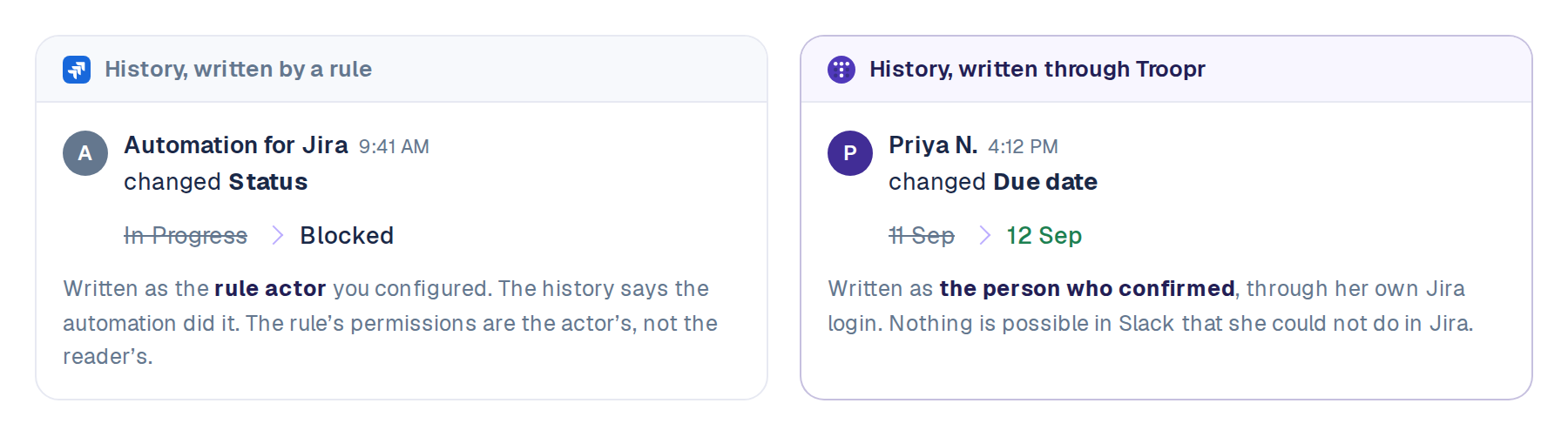
That is why proposals are routed rather than executed. The write runs under the login of whoever confirms it, which is also whose name ends up on it in Jira.
Native rules or Troopr: which do you actually need?
They do different jobs, so the useful comparison is by job rather than by feature list.
A Jira automation rule and Troopr, by job
Every cell in the rule column is live-verified against Atlassian's documentation, 11 September 2026.
| Job | Jira automation rule | Troopr |
|---|---|---|
| Where the trigger lives | Inside Jira: a work item event or a schedule | Inside Slack or on a cadence: a message, a reaction, a command, a workflow, a watch |
| Direction | Jira to Slack. Slack to Jira only through a webhook something on the Slack side has to call | Both. Thread and channel sync carry comments and attachments both ways |
| Writes as | The rule actor you configure | The person who confirms, through their own Jira login |
| Can ask one person and act on the answer | Posts a message; nothing listens for a reply | A nudge DMs the owner and the answer comes back to whoever set it |
| Can wait for a confirmation before writing | No. An action runs when its condition passes | Yes. A proposal writes nothing until the owner confirms, then revalidates against live state |
| Metered on | Every step that runs, including NO_MATCH | The routine itself. What it produces is never counted |
| On Jira Free | 150 steps a month for the whole subscription | Full product: 10 seats, 3 synced channels, 3 routines |
| Jira Data Center | Automation for Jira, webhook URL stored as a secret key from 9.0.0 | Cloud and Data Center on every plan |
| Standups, retros, planning poker, sprint reports | Not what it is for | Check-ins and Routines, on every plan |
| Price | Included. From 3 December 2026, $0.50 per 1,000 steps past the allowance | Free for 10 seats. Then $6 per seat/month billed annually |
Rule column: Atlassian automation usage, service limits and Use Slack with Automation documentation. Troopr column: Troopr product documentation.
Troopr covers the half a rule cannot see: the work discovered in Slack before it is tracked, the standup nobody wants to type, the board that drifts, and every change that should wait for the person who owns it. It installs alongside whatever is already in the workspace, so nothing has to be removed first.
Frequently asked questions
Can Jira integrate with Slack?
Yes, three separate ways that are easy to confuse. Jira automation posts out through a webhook, as above. Atlassian's free Jira Cloud for Slack app handles personal and channel notifications, issue previews, and basic creation and transitions from Slack. Third-party apps add the depth: bidirectional comment and attachment sync, thirteen ways to create an issue from Slack including AI drafting with Task It and routines that act rather than only report. There is a fuller comparison of every way to connect the two if you are choosing between them.
How to set up Slack automation?
If you mean Jira posting into Slack: Project settings, Automation, Create rule, then trigger, Lookup work items, Send Slack message, and test on Manual first. If you mean Slack driving Jira, there is no rule to build, because the trigger is a message. You install an app and configure the channel's defaults instead.
Does Atlassian use Slack?
Atlassian builds and maintains a first-party Slack app, Jira Cloud for Slack, and ships a Send Slack message action inside Jira automation with a Microsoft Teams equivalent beside it. Whether Atlassian's own staff run Slack internally is not worth guessing at. Slack is a fully supported, documented target for Jira, which is the part that affects your setup.
How to send Jira notifications to Slack?
Three paths, by how much control you need. Atlassian's free app offers channel subscriptions with JQL filtering from the project's notification settings. An automation rule, built as above, gives you a schedule, a digest, or a message shaped exactly the way you want it. Troopr adds per-channel JQL and status-transition filters, batching from one minute to twelve hours, and a synced thread on each notification. If the problem is volume rather than setup, filtering and batching Jira alerts is its own subject.
How much does Jira automation cost?
Nothing extra until you pass your allowance, and the allowance depends on your plan: 150 steps a month for the whole subscription on Free, then 400, 750 and 1,000 steps per user per month on Standard, Premium and Enterprise. From 3 December 2026, steps past that bill at $0.50 per 1,000, or the flows stop if your admin has extra usage switched off. A daily Slack digest is about 90 steps a month. An event-triggered rule in a busy project can be thousands, because the trigger and condition bill on every event whether or not anything gets posted.
Can I create a Jira ticket from a Slack message?
Not with Jira automation, whose triggers live inside Jira. You need something on the Slack side, and Troopr gives you thirteen entry points: a reaction, a command, an unanswered message, a whole channel, or Task It, which drafts the issue from the message, each filing it with the thread and attachments already on it.
What is the difference between Jira automation and Slack Workflow Builder?
Direction, mostly. Jira automation starts inside Jira and can post out to Slack. Slack Workflow Builder starts inside Slack and can create a Jira issue through the Jira Cloud or Jira Data Center connector, which Slack builds and supports. Neither one syncs a conversation with an issue after the fact, asks a person a question, or waits for a confirmation before writing; that is the layer an app adds.
Can Jira automation post to Microsoft Teams?
Yes. The same rule takes a Microsoft Teams action in place of the Slack one, and Atlassian's template library says so directly. That is Atlassian's feature rather than an app's, so it needs nothing installed on the Teams side beyond a webhook.
Does any of this work with Jira Data Center?
Automation for Jira runs on Data Center, with the secret key difference in setup noted above, and Slack's Workflow Builder lists a Jira Data Center connector alongside the Cloud one. Say Data Center rather than Server, since Atlassian ended Server support in February 2024. Troopr supports Jira Cloud and Data Center on every plan.
Why did my rule suddenly stop running?
Check the audit log first. A status of THROTTLED means a service limit, most often the 60 minutes of processing per 12 hours or a JQL search over the cap. If nothing appears in the log at all, the organization's automation step pool may be exhausted, which stops every rule on the site until the usage date resets.
So, the fork
If what you need is Jira talking to Slack on a schedule, the steps above build the rule, including the parts Atlassian's own page leaves out.
If the problem is the other half, the tickets that never get written, the standup that has to be typed, the board that stops matching reality by Wednesday, the status you assemble by hand before every review, then a rule is the wrong shape for it. A rule fires when you tell it to. It has no idea what your team is actually doing.
Netflix's engineering team spends about 67% less time finding and updating Jira issues, and that number does not come from a better rule.
Last verified 11 September 2026 against Atlassian's automation service limits, automation usage, Use Slack with Automation and Slack automation template library pages, and Slack's Workflow Builder connector list. More on the product: managing Jira issues from Slack and Check-ins. Docs: auto-create, emoji actions, commands, channel sync.


The AI project manager for engineering teams. Forms its own view of the work and does the coordination, right where your team already works.
2035 Sunset Lake Road, Suite B-2, Newark, DE 19702, United States.