

Jira Slack commands: every /jira and /t command, ready to copy
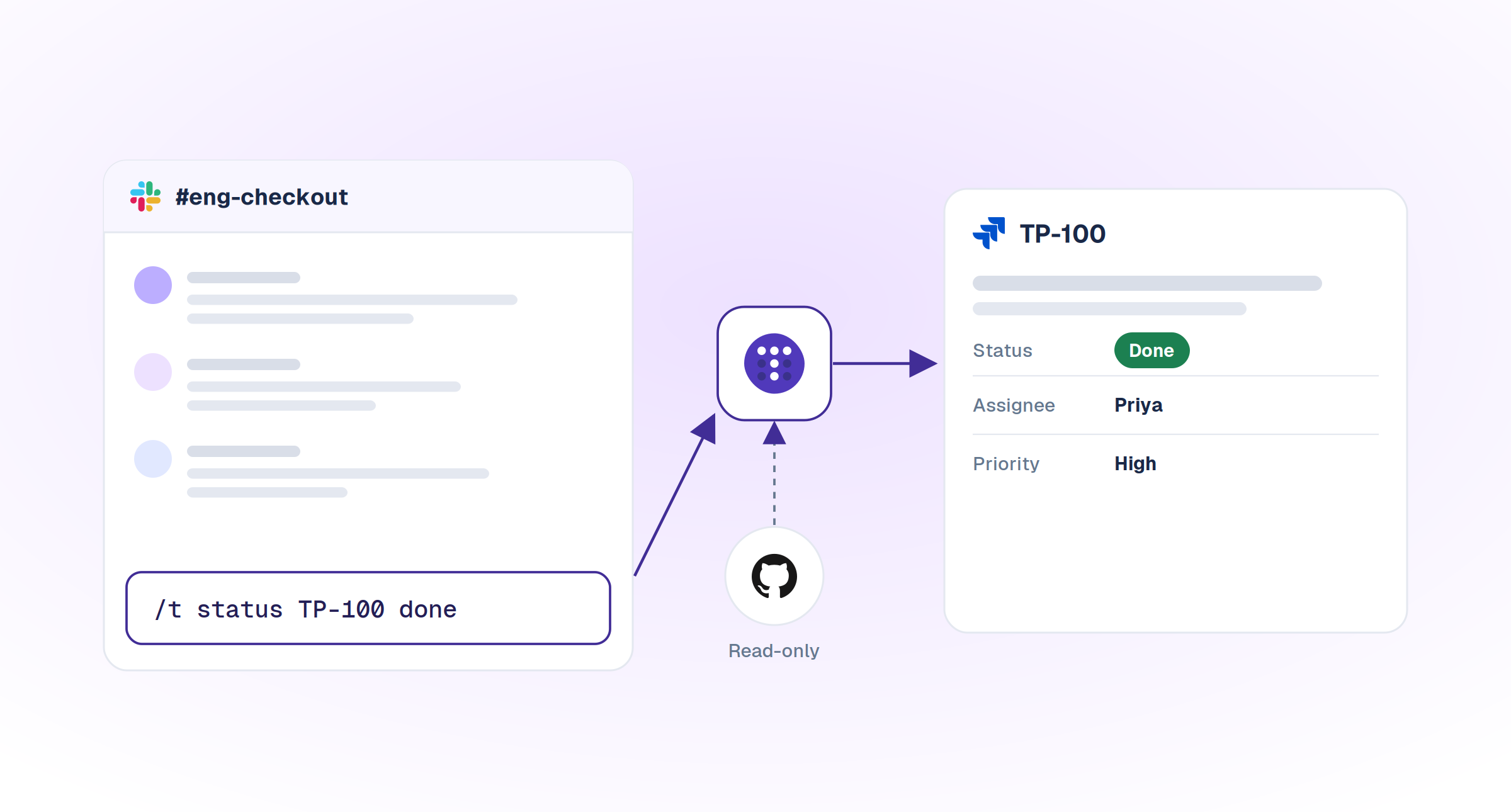
Jira's official Slack app runs on /jira: /jira create, /jira connect, /jira manage, /jira notify, /jira [issue key], /jira agent, /jira unsubscribe, /jira logout, /jira feedback and /jira help. Jira Data Center uses /jira_server. Troopr's /t creates, finds, updates, assigns, comments, logs time, links issues and starts sprints, with fields set inline.
Below, every command is grouped by the job you're trying to get done, with an example you can paste straight into Slack. Swap TP-100 for one of your own keys. Atlassian's commands are listed as its documentation reads on October 5, 2026.
Slack Jira commands: three prefixes, three apps
The prefix tells you which app is listening.
- /jira is Jira Cloud for Slack, Atlassian's app for Jira Cloud.
- /jira_server is Jira Data Center for Slack, Atlassian's app for self-managed Jira.
- /t is Troopr, which runs the same commands on Jira Cloud, Server and Data Center.
Slack only recognizes a command once the app behind it is installed in your workspace. That one fact explains most of the "this command doesn't work" threads on the forums.
Jira Cloud for Slack commands (/jira)
Atlassian's own app keeps its slash commands focused on setup, notifications and quick lookups. Here is its documented list, plus the @Jira mention that does the heavier lifting.
Official Jira commands in Slack
As documented by Atlassian, checked October 5, 2026
| Command | What it does |
|---|---|
| Jira Cloud for Slack | |
/jira connect | Subscribes this channel to a Jira space. |
/jira manage | Shows and manages the channel's subscriptions. |
/jira notify | Sets up or changes your personal notifications. |
/jira create | Opens a dialog: pick a space and work type, then enter a summary and description. |
/jira PROJ-123 | Shows a work item's details, visible only to you. |
/jira agent | Configures @Jira for this channel: site, default space and custom instructions. |
/jira unsubscribe | Stops notifications you no longer want. |
/jira logout | Logs you out of your Atlassian account. Existing subscriptions stay in place. |
/jira feedback | Sends feedback about the app to Atlassian. |
/jira help | Lists every command available in your workspace. |
@Jira assign PROJ-123 to Priya | Plain-language create, update, assign, comment and search. An organization admin must activate Rovo first. |
| Jira Data Center for Slack | |
/jira_server PROJ-123 | Shows an issue, visible only to you. |
/jira_server account | Shows the Jira account you have connected to Slack. |
/jira_server help | Shows help for the slash commands. |
Replace PROJ-123 with one of your own keys. Run /jira help to see the full set in your workspace.
Three details the table can't hold. /jira create opens a dialog where you choose the space and work type, then type a summary and description, so it doesn't take fields on the command line. A /jira PROJ-123 lookup is visible only to you. And Atlassian now says work item instead of issue and space instead of project, so its docs may not match your muscle memory. Atlassian calls these its most useful commands, so run /jira help to see everything your workspace has. The full reference is Atlassian's Jira Cloud for Slack guide.
Setting up channel and personal alerts is its own topic, covered step by step in Jira notifications in Slack.
@Jira, preview cards and the message menu
Most of the official app's day-to-day work happens outside its slash commands. Mention @Jira in a channel or thread and ask in plain language: create a bug from this thread, assign PROJ-123 to Priya, raise a priority, add a comment, or show the work due this week. Inside a thread it reads the whole thread for context. An organization admin has to activate Rovo before any of this works, as Atlassian's @Jira documentation explains.
Paste a Jira link and the preview card lets you edit fields, watch the item and sync the thread to Jira as comments. The More actions menu on any message creates a work item, with Rovo filling in the summary and description when it's switched on. Both are covered in Create and update Jira work from Slack.
Jira Server Slack commands (/jira_server)
If you run Jira Server or Data Center yourself, Atlassian's option is the Jira Data Center for Slack app, and its command list is short: /jira_server PROJ-123 to look up an issue (only you see it), /jira_server account to check which Jira account you've connected, and /jira_server help. Channel notifications, personal alerts and dedicated issue channels are set up from Jira's admin screens rather than from Slack. The three rows are in the table above, and Atlassian's Data Center guide covers the setup.
Troopr's /t works the same on Jira Cloud, Server and Data Center, so a self-managed team gets every command in the next section. Netflix's engineering team runs hosted Jira Server and spends ~67% less time finding and updating Jira issues with Troopr. Roku, on Jira on-premise, cut Slack-to-Jira context-switching by ~45%, about 1.8 focused hours back per engineer per day. If your Jira sits behind a firewall, Troopr connects through fixed IPs you can allowlist or a WebSocket agent, and on Enterprise it can run self-hosted inside your network.
Troopr's /t commands, grouped by job
Troopr puts the whole Jira workflow behind one slash command. Type /t on its own and the launcher opens. Add a keyword and it does the job. Add a question and it answers. Every action runs as you, through your own Jira login, so nothing happens in Slack that you couldn't do in Jira.
Troopr /t commands by job
Swap TP-100 for your own keys. Every keyword also works by @mention or DM.
| Command | What it does |
|---|---|
| Open everything | |
/t | Opens the launcher: +Issue, your issues, new bug, story, task or epic, find, routines, settings and Jira login. |
/t help | Lists every keyword. |
| Create | |
/t create Checkout 500s on Safari @priya +Priority:High | Creates the issue with summary, assignee and priority set. A missing required field opens the create form, pre-filled. |
| Find and list | |
/t find TP-100 | Finds an issue by key and posts it as a card you can act on. |
/t find checkout timeout | Finds issues by phrase. |
/t list | Lists your issues in the channel. Filter by status, saved filters or custom JQL. |
/t show | Shows issues for the channel's default project or board, the active sprint on scrum boards. |
/t project TP | Looks up a project by key. |
| Update | |
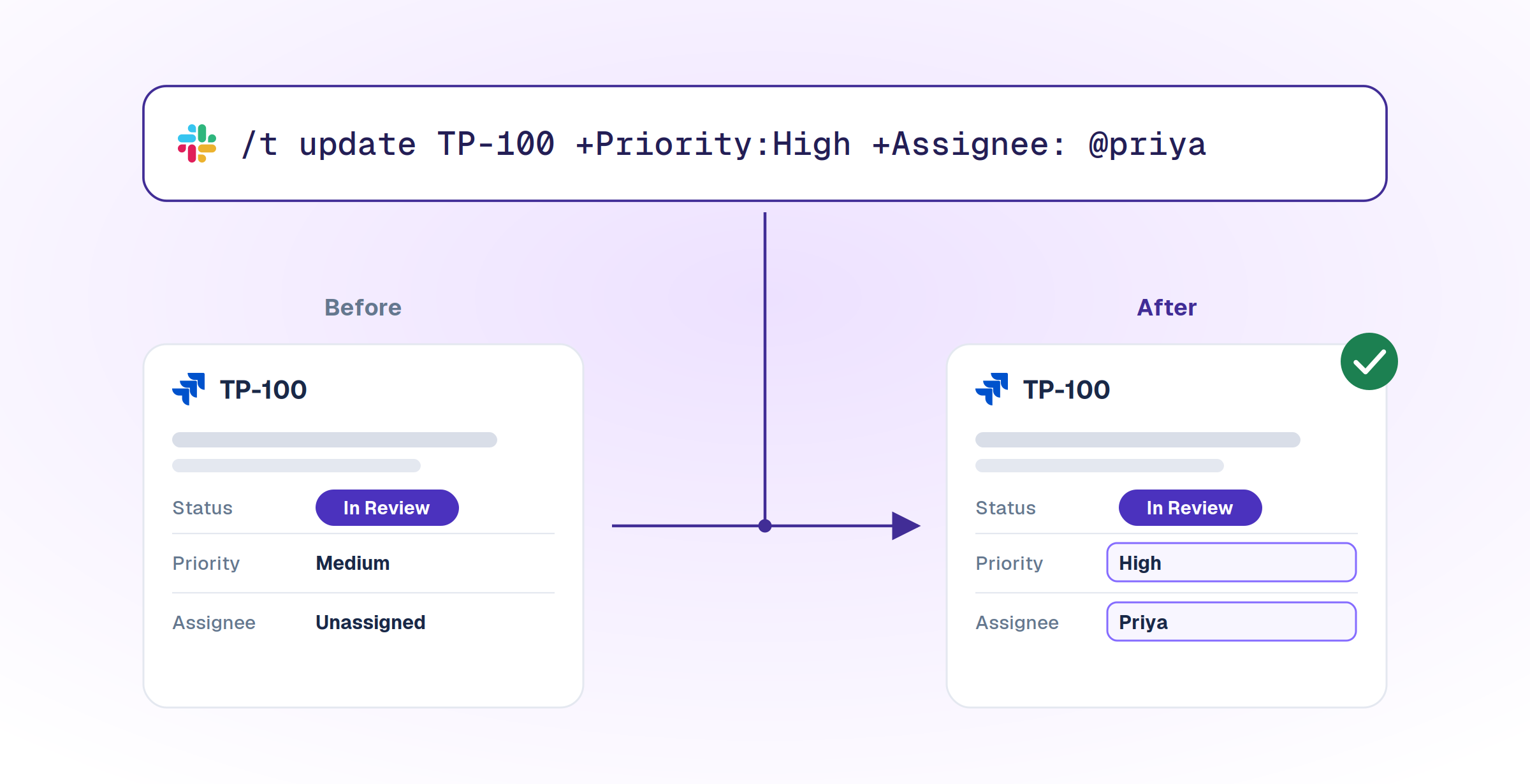
/t update TP-100 +Priority:High +Labels:checkout | Sets any number of fields in one line. |
/t status TP-100 done | Moves the issue through its workflow, honoring transition screens. |
| Assign | |
/t update TP-100 +Assignee: @priya | Assigns with a Slack mention, resolved to the Jira user. /t assign is also a keyword. |
| Comment | |
/t comment TP-100 Repro'd on staging, fix ships Thursday | Adds a Jira comment as you. |
| Log work | |
/t log 1h TP-100 | Logs one hour against the issue. |
| Link | |
/t link TP-100 is blocked by ST-1 | Links two issues with any link type, custom ones included. |
| Sprints and estimates | |
/t sprint start | Starts a sprint: choose the board, sprint and end date. |
/t sprint stop | Stops the active sprint. |
/t poker TP-100 | Runs instant planning poker on one issue and writes the agreed estimate back to Jira. |
| Ask | |
/t who is blocked? | Answers from the team's real Jira, GitHub and Slack activity. Only you see the reply, even in a shared channel. |
| Personal and admin | |
/t configure | Sets Troopr up for this channel. |
/t reports | Opens your routines: the reports, nudges and proposals Troopr runs on a schedule. |
/t checkin | Opens Check-ins: standups, retros, planning poker and team mood. |
Every action runs as you, through your own Jira login.
Every keyword also works when you @mention Troopr or send it a DM, and the full syntax lives in Troopr's command docs.
Create
Summary first, then an @mention for the assignee, then any field as +Field:value. Leave out a required field and the create form opens with everything you typed already filled in, so a half-remembered command still lands. /t create is one of thirteen ways to open an issue from Slack, and we cover every way to create a Jira ticket from Slack in a separate guide.
Find and list
/t find takes a key or a phrase and posts the results as issue cards you can act on from the channel. /t list starts with the issues assigned to you and filters by status, saved filters or your own JQL, which beats posting "can someone send me the link" by a wide margin.
Change an issue
One /t update sets as many fields as you like. /t status moves an issue through your workflow and still asks for any fields its transition screen requires. Assign with an @mention, comment in plain text, log time with /t log, and link issues with any link type your Jira has, custom ones included.
Sprints and estimates
/t sprint start starts a sprint once you pick the board, sprint and end date, and /t sprint stop ends it. /t poker runs an instant planning poker round on one issue and writes the agreed estimate back to Jira, which retires the "wait, did we say five or eight?" conversation.
Personal and admin
/t configure sets Troopr up for the channel you're in. /t reports opens your routines, the standing instructions Troopr runs for the team on a schedule, and /t checkin opens Check-ins for standups, retros, planning poker and team mood. /t help lists every keyword when memory fails.
All of it works on Troopr's Free plan, which covers 10 seats with every feature included. Start for Free.
Set any field inline with +Field:value
This is the part that saves the most clicks. Write the field name the way Jira shows it, a colon, then the value. It works in /t create and /t update, custom fields included.
The +Field:value grammar
Works in /t create and /t update, custom fields included
| To set | Write | Note |
|---|---|---|
| Summary | /t create Fix flaky login test | Comes straight after create. |
| Assignee | @priya | A Slack mention, resolved to the Jira user. |
| Any field | +Priority:High | Use the field name as Jira shows it. |
| Multi-word field | +Story point estimate:3 | Spaces in field names are fine. |
| Value with spaces | +Components:"Payments API" | Wrap the value in quotes. |
| Date | +Due date:10/30/2026 | Month, day, year. |
| Estimates | +Original estimate:4w +Remaining estimate:2d | Jira's time format. |
| Epic | +Epic Link:TP-245 | The epic's key. |
| Sprint | +Sprint:47 | The sprint ID, not its name. |
| All together | ||
| Full create | /t create Checkout 500s on Safari @priya +Priority:High +Labels:checkout +Components:"Payments API" | One line, one complete issue. |
Leave out a required field and the create form opens with everything you typed already filled in.
Field names should match Jira's exactly, capitals included, and Sprint takes the sprint's ID rather than its name. Slack mentions inside values resolve to Jira users, so @priya lands on the right person.
Your team's own /t commands
Admins can add keywords to /t for whatever your team does ten times a day. A user command is an issue create, an issue list or an issue find, saved with its own project, issue type, status, assignee, reporter, labels, ordering, JQL or Jira saved filter. If your team files a lot of checkout bugs, an admin can add a keyword such as checkoutbug with the project, issue type and labels preset, so /t checkoutbug Apple Pay sheet won't close files a complete bug in one line. A list-type keyword does the same for the query your standup always starts with.
Jira actions without typing a command
Some days the fastest command is no command at all.
- Emoji actions: react with a configured emoji to create an issue, assign it to yourself, mark it done or add a comment. Admins set them for the workspace or a channel, you can add personal ones, and custom Slack emoji work too.
- Task It: from any message's More actions menu, Troopr turns the message into a Jira issue and fills in the title, description, priority and a suggested assignee.
- Comment It: adds any Slack message to an existing issue as a comment.
- Multi-message issues: react on the first message and use Task It on the last, and up to ten messages become one issue, with the first as the summary.
- Global shortcuts: create, search or list issues from Slack's shortcut menu, wherever you are.
For rules that fire without anyone touching anything, see Jira Slack automation.
Same job, two apps
Here's how the two compare when you're actually trying to get something done.
Same job, two apps
Jira Cloud for Slack per Atlassian docs, checked October 5, 2026
| Job | Troopr | Jira Cloud for Slack |
|---|---|---|
| Create an issue | /t create with summary, assignee and any field in one line | /jira create opens a dialog; the message menu and @Jira also create |
| Look up an issue | /t find PROJ-123 or a phrase, posted as an actionable card | /jira PROJ-123, shown only to you |
| List issues | /t list with status filters, saved filters and JQL | Home tab for assigned and watched; @Jira search in plain language |
| Change status | /t status PROJ-123 done | Buttons on preview and notification cards; @Jira |
| Assign | /t update PROJ-123 +Assignee: @priya | Buttons on cards; @Jira |
| Comment | /t comment PROJ-123 your text | Card actions; @Jira |
| Edit several fields | One /t update with several +Field:value pairs | Inline edit on the preview card; @Jira |
| Log work | /t log 1h PROJ-123 | Not in Atlassian's Slack docs |
| Link issues | /t link PROJ-123 is blocked by PROJ-7 | Not in Atlassian's Slack docs |
| Start or stop a sprint | /t sprint start /t sprint stop | Not in Atlassian's Slack docs |
| Team shortcuts | Admin-defined /t keywords with saved defaults, JQL or saved filters | Custom instructions for @Jira via /jira agent |
| Ask about the team | /t plus a question, answered privately from Jira, GitHub and Slack activity | @Jira searches work items in plain language |
| Self-managed Jira | The same /t commands on Jira Cloud, Server and Data Center | Separate Data Center app with three /jira_server commands |
Plain-language @Jira requests need Rovo, activated by an organization admin.
When your team runs its Jira work from Slack all day, /t does each job in one line, on whichever Jira you run. Our Jira Slack integration guide goes deeper on setup and two-way sync.
Commands you'll find online that aren't in Atlassian's docs
Search for Jira Slack commands and you'll find lists with /jira assign PROJ-123 @name, /jira comment PROJ-123 followed by text, or /jira create followed by an issue type, summary and description. None of those appear in Atlassian's current documentation, which describes /jira create as opening a dialog. An older Slack announcement shows /jira connect followed by your Jira URL; today /jira connect subscribes a channel to a Jira space. To assign or comment with the official app, use @Jira or the buttons on the card. If a command from an old post does nothing, it isn't you. Run /jira help and believe what it says.
Troubleshooting Jira commands in Slack
- "/jira is not a valid command." The app isn't installed in this workspace. Install Jira Cloud for Slack, or Troopr for /t, and try again. An Atlassian Community thread gives the same answer.
- It works in public channels but not a private one. Invite the app to the private channel first.
- "Connecting with this Jira Cloud instance was disabled by administrator." Your Jira site admin has to turn on the Slack integration before anyone can connect.
- Nothing happens in a shared channel. In Slack Connect channels, only members of the organization that installed an app can use its shortcuts, per Slack's guide to shortcuts and slash commands.
- /t asks you to connect Jira. Sign in with your Atlassian account once, from the launcher or Slack's App Home, so your actions run as you. If Jira isn't connected for the workspace yet, any member can send an admin a Connect Jira request.
- /t update rejects a field. Check the field name against Jira's spelling and capitals, and use the sprint ID for Sprint.
When nobody has to type anything
Commands are the fastest way to change Jira by hand. The better question is how much still needs changing by hand. Troopr forms its own view of the team from real Jira, GitHub and Slack activity, so a lot of the typing goes away. The standup writes itself from what each person actually did. When a PR merges and its ticket still says In Progress, Troopr proposes the move to whoever owns the work; nothing is written until they confirm, and the change runs under their own Jira login.
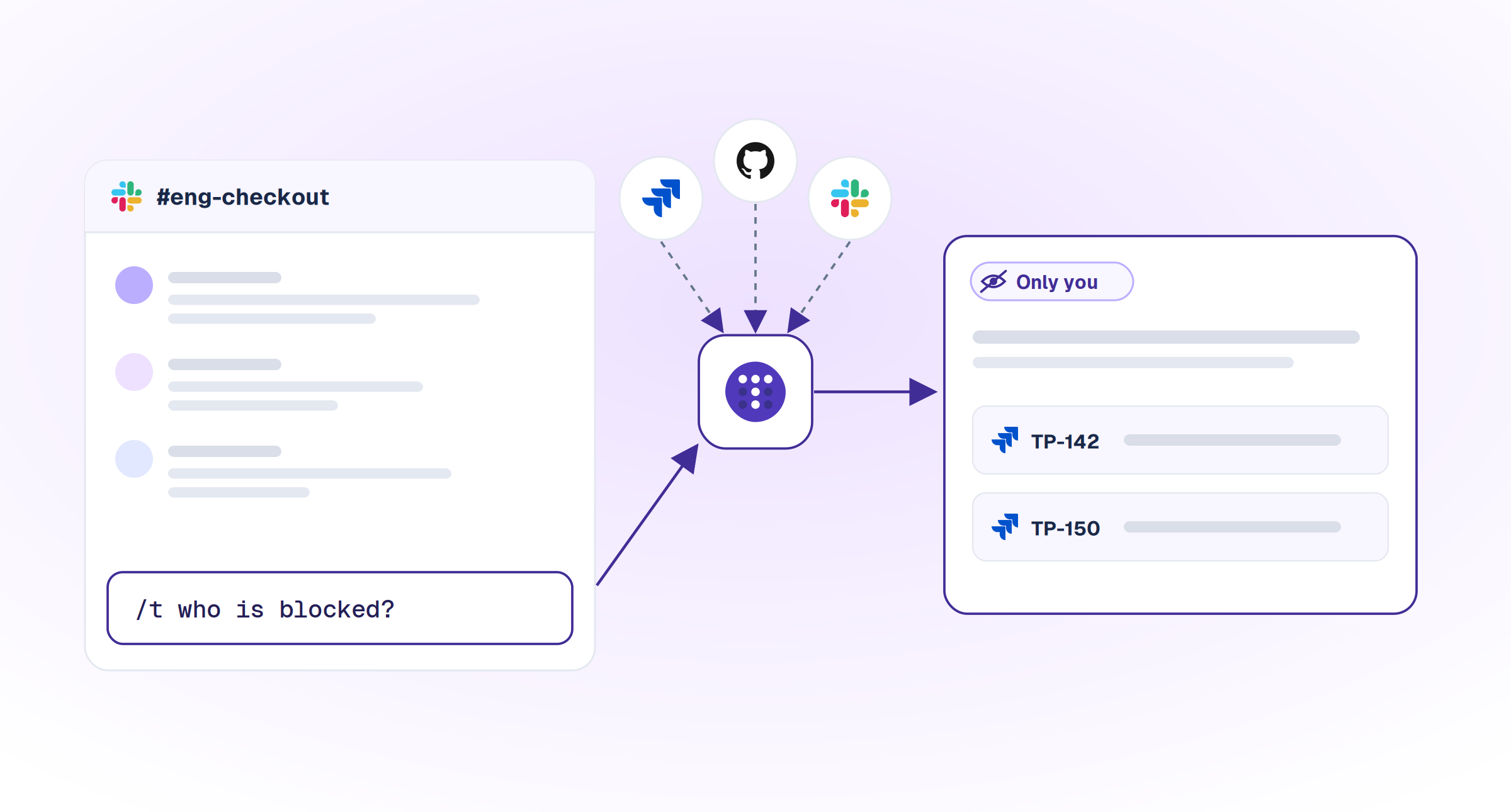
And when you need the state of things, ask. /t who is blocked? answers privately, even in a shared channel, from what actually happened in Jira, GitHub and Slack rather than what someone remembered to report. That's the difference between a command bar and a project manager. See how the pieces fit on Troopr's Slack Jira integration page.
Frequently asked questions
How do I run commands in Slack?
Type a forward slash in the message box, then the command and any text after it, such as /jira help or /t find TP-100. You can also click the slash icon beside the message field to browse every command your installed apps add.
Can Slack be used with Jira?
Yes. Atlassian's Jira Cloud for Slack app adds /jira commands, notifications, preview cards and @Jira, and Troopr adds /t commands, two-way Slack and Jira sync, standups and routines on Jira Cloud, Server and Data Center.
Can you use Slack as a ticketing system?
Slack works best as the front door and Jira as the system of record. With a Jira app installed, people raise and update tickets without leaving Slack, and Troopr's thread sync turns thread replies into Jira comments and posts Jira updates back to the thread.
How to create an automated Slack message?
For general messages, Slack's Workflow Builder automates posts and tasks inside Slack. For Jira, a Troopr routine posts a Jira report to a channel on a schedule or stays silent until something needs attention, and a Troopr channel subscription posts Jira events into the channel as they happen, filtered by JQL.
What are the key differences between Jira and Slack?
Jira is the record of the work: issues, statuses, sprints and estimates. Slack is where the team talks about that work, and Jira commands in Slack let you change the record without leaving the conversation.
Try every command above on your own Jira. $6 per seat/month. Everything included. Free for 10 seats. Start for Free, or Book a Demo if you'd like a walkthrough first.


The AI project manager for engineering teams. Forms its own view of the work and does the coordination, right where your team already works.
101 Arctic Circle, Round Rock, Texas 78664, United States.